Android’s Smart Lock (now often called Extend Unlock) trades convenience for security by keeping phones unlocked under trusted conditions, and that trade-off needs deliberate management on corporate devices.
Smart Lock covers five methods, trusted locations, devices, on-body detection, voice match, and face, though voice and face unlock have since been restricted or removed for security reasons.
Left unmanaged, these conveniences can leave stolen or lost devices exposed, especially in business use.
Hexnode UEM gives admins granular control to enable, disable, or restrict Smart Lock features and lock screen settings across managed devices.
Imagine having your phone unlock itself when you pick it up…
Sounds interesting right?
Hey, I am not quipping. It is now possible with an Android smart lock!!
One of Android’s best-kept secrets, Smart Lock, keeps your phone unlocked while linked with a reliable Bluetooth device or when it’s on your person. It provides a balance between security and a trusted environment.
When did your phone locks become smart?
Google Smart Lock, sometimes known as Android Smart Lock, was introduced with Android 5.0 Lollipop. The main benefit of using a smart lock is elementary! It solves the problem of always trying to unlock your phone. This lets the user specify circumstances in which it can safely remain unlocked for extended periods of time.
Additionally, this smart lock feature reduces the need to open a password-protected device as frequently in low-risk situations. In these cases, the phone can be accessed with a simple swipe. These circumstances include:
Trusted locations
Trusted devices
On-body detection
Trusted voice match
Trusted face
Smart Lock is never actually a part of the firmware and is instead always managed by Google Play Services. Trusted locations, trusted voice, and on-body detection are implemented with a Google Play Services update.
Wait, Isn’t It Called “Extend Unlock” Now?
Here’s a twist. On several newer Android devices, you won’t find “Smart Lock” listed anywhere in settings.
Don’t panic. Google has been quietly rebranding the feature as Extend Unlock on many phones, including recent Samsung models.
The name changed, but the core idea hasn’t. It’s still the same trio of convenience features: trusted places, trusted devices, and on-body detection.
Why the switch? Google likely wanted a name that better reflects what the feature actually does. It doesn’t just “lock smart” — it extends the unlocked state under safe conditions.
So, if you’re hunting for Smart Lock on a recently updated device and can’t locate it, search “Extend Unlock” instead. Same engine, different badge.
This matters for IT admins too. If you’re auditing device settings or writing internal documentation, don’t assume every device in your fleet shows the same label. Depending on the OEM skin and Android version, your users might see either name.
For consistency, it helps to standardize your training materials and helpdesk scripts to mention both terms. A small naming footnote can save your support desk a surprising number of “where did my Smart Lock go?” tickets.
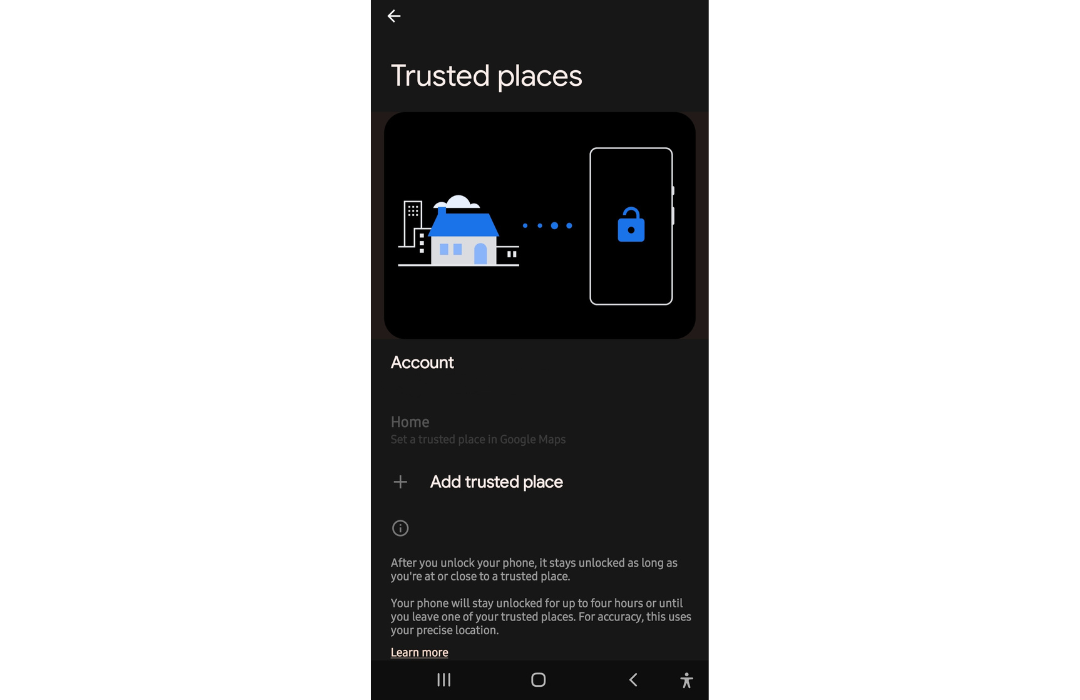
1. Trusted locations
When you are in your home or a trustable place, why do you need to unlock your phone each time? It’s unusual (though not impossible) that an unknown person will enter your living room and steal your phone. Authentication is not needed to access your device since the user finds the surroundings secure and reliable.
UI of trusted place feature
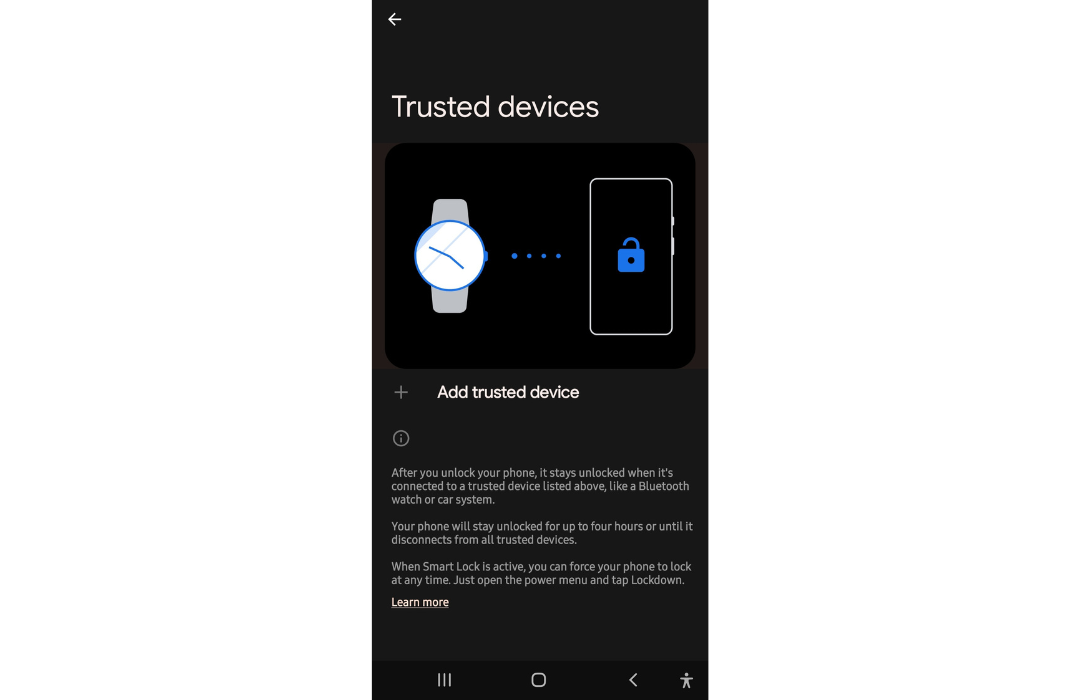
2. Trusted devices
It is also possible to access your smartphone, which automatically pairs with your car’s bluetooth system. We can choose any bluetooth products we are confident with using this option. Thereby we won’t need to enter the passcode to unlock our phone when it’s connected to these devices.
UI of trusted device feature
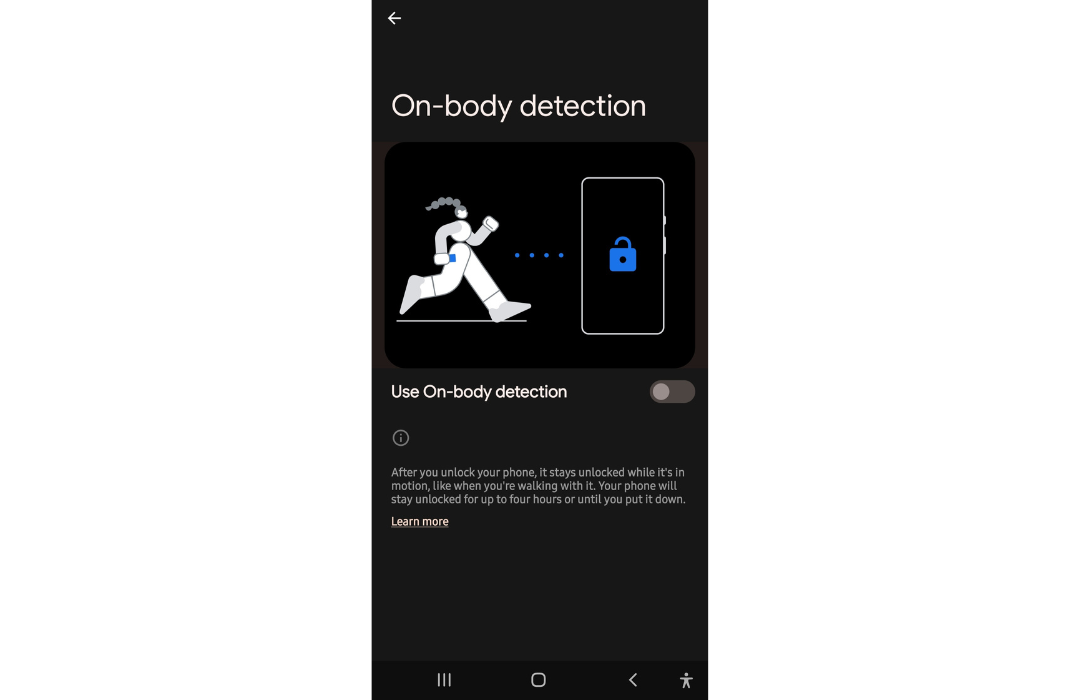
3. On-body detection
Your smartphone is really smart!! It is aware of its state at all times, including when it is static, picked up, and even in motion.
When you take the phone out of your pocket or bag, you won’t have to enter your pin or passcode again if you already did so. You may thus keep the phone unlocked when it’s on you. It remains unlocked as long as you move, hold, or carry your phone. Thanks to the on-body detection feature!
UI of on-body detection feature
4. Trusted voice match
We can utilize the trusted voice function together with voice commands. The smartphone will automatically unlock after voice detection is configured and a voice match is detected. This option will give you access to some of your phone’s functionalities but won’t ultimately unlock your phone all the time.
What you should know about Trusted voice match?
Voice match is not an entirely secure method of authentication. Thus, Google announced at CES 2019 that they eliminated voice match’s ability to unlock phones and this new behavior would arrive on all Android devices. As a result, this feature on phones and tablets can no longer fully unlock a device; instead, it can only provide Assistant “personal results,” such as email and calendar entries. This modification also has the advantage of synchronizing Voice match behavior with Google Home speakers and Smart Displays.
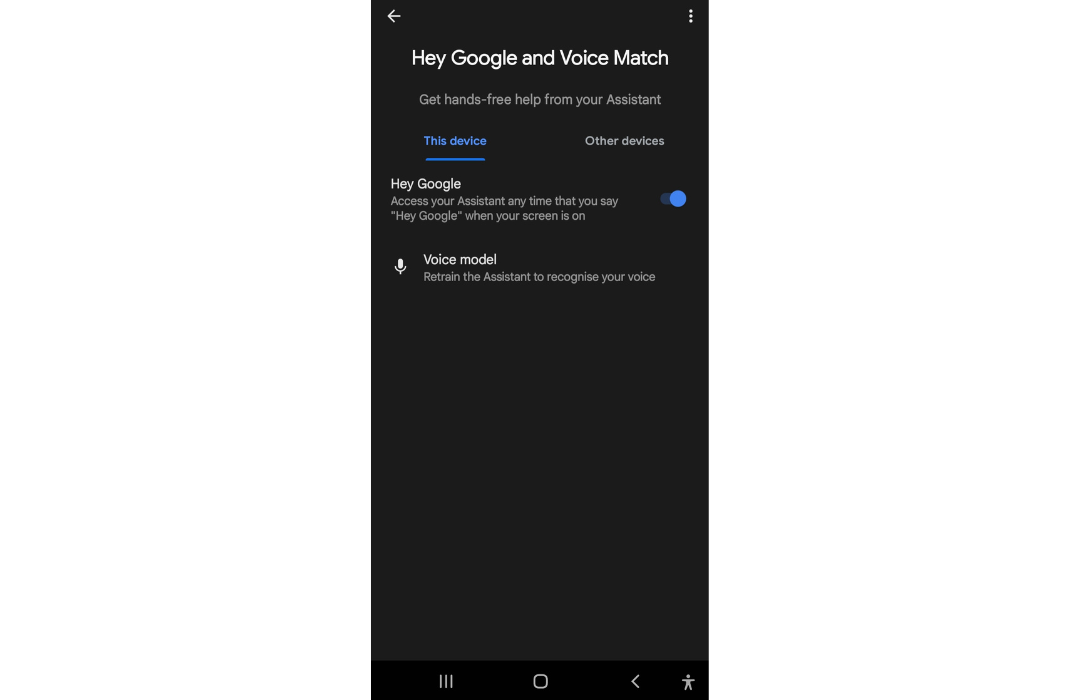
This feature can be enabled in settings:
Search for google assistant > Assistant settings> Hey google and voice match.
UI of voice match feature
5. Trusted face
Do you recall the Face Unlock function? This feature, launched with the Android 4.0 Ice Cream Sandwich in 2014, enables face recognition to unlock your phone. With this Trusted face function included in Smart Lock, the phone uses facial recognition to allow users to engage with alerts and unlock them in a much more reliable way. Unfortunately, it was found that a picture of the owner made it simple to unlock the phone and made it unreliable.
Authentication of User’s face
What you should know about Trusted face?
This feature is now totally absent from stock and OEM devices, running Android 10 or earlier devices. It is quite likely that the option was removed in a Google Play Services update.
Smart Lock Isn’t Just for Phones Anymore
Smart Lock’s usefulness doesn’t stop at your phone’s lock screen.
Google extended the same convenience to Chromebooks. Once set up, your Android phone can act as a key for your laptop.
Here’s how it works. As long as your phone stays unlocked and within Bluetooth range of your Chromebook, the laptop skips the password prompt too.
Walk away with your phone, and the Chromebook locks itself. Come back, and it’s ready to go. No typing required.
Setting this up takes a few steps on the Chromebook side: head to Settings, open Connected devices, and link your Android phone through your Google Account. Both devices need to be signed into the same account for it to work.
This is especially handy for hybrid workers who juggle a phone and a laptop all day. Fewer logins mean fewer interruptions.
That said, the same trade-off applies here as it does on phones. Convenience comes at the cost of a slightly wider attack surface. If someone has physical access to an unlocked, paired phone, they effectively have access to the paired Chromebook too.
For personal devices, this may be an acceptable trade-off. For company-issued laptops, it’s worth deciding deliberately rather than leaving it to default settings.
How to setup a Smart Lock on Android devices?
To install Smart Lock on an Android smartphone, follow the instructions below.
A Quick Note on Finding These Settings Today
Quick heads-up before you dive in: menu paths shift depending on your Android version and device manufacturer.
The classic route is Settings > Security > Advanced > Trust agents. That still works on many devices.
But on newer builds, you’ll more likely find it under Settings > Security & privacy > More security settings > Smart Lock (or Extend Unlock).
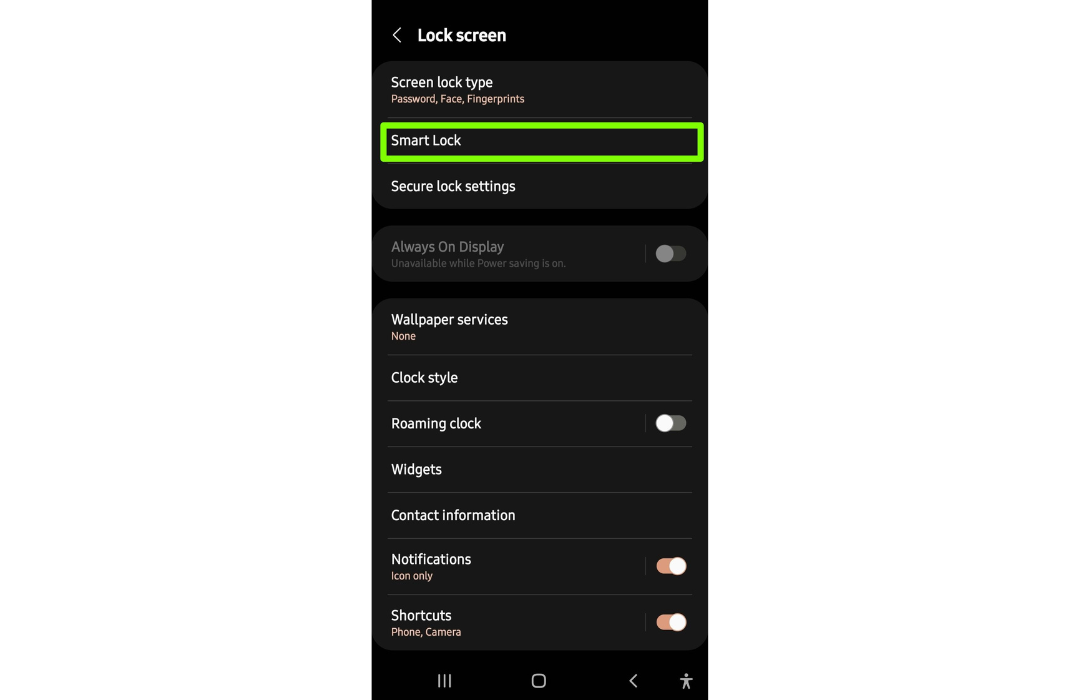
Samsung devices often tuck it under Settings > Lock screen > Smart Lock instead.
If neither path matches what you see, don’t get stuck scrolling. Use the search bar at the top of the Settings app and simply type “Smart Lock.” It’ll take you straight there, regardless of how your specific OEM has reorganized its menus.
One more thing: you’ll always need an existing screen lock method, like a PIN, pattern, or password, before Smart Lock options become available. Swipe-only lock screens won’t unlock this feature.
With that settled, here’s the general setup flow most devices follow.
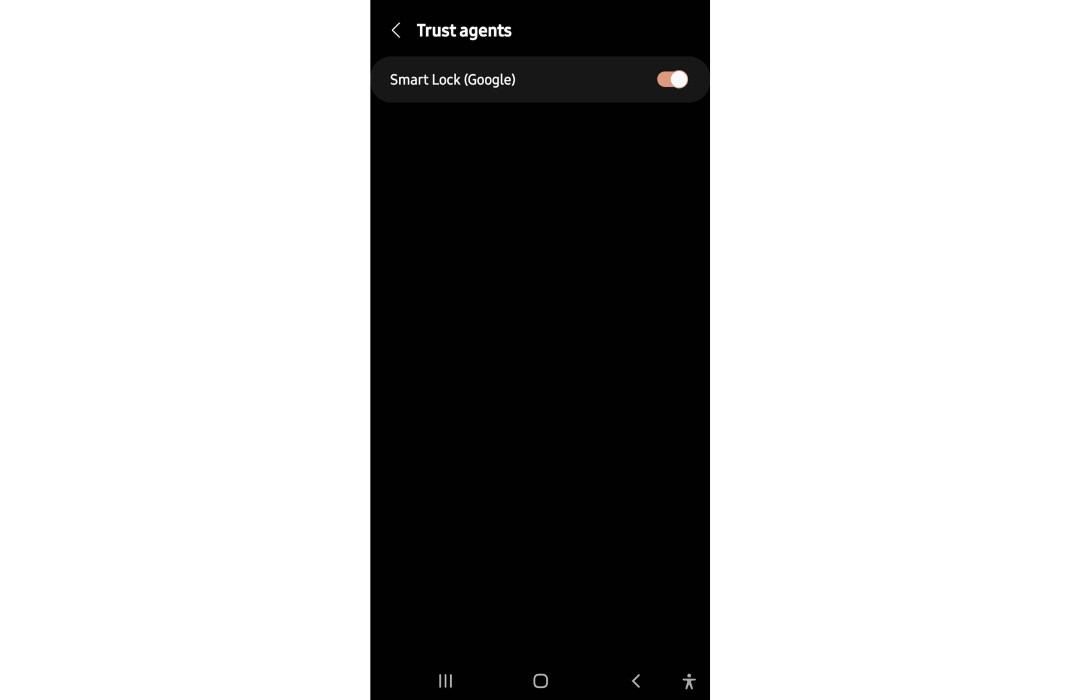
1. Navigate to Settings > Security > Advanced > Trust agents and check whether the Smart Lock is turned on.
On your specific phone model, the Trust Agents setting may be located in a different location. Tap the magnifying glass at the top of the Settings screen to look for Trust Agents.
Enable the smart lock option
2. Then search for Smart lock in security settings
3. Select Smart Lock, then input your fingerprint, pin code, unlock pattern, or password.
UI of lock screen feature with smart lock option
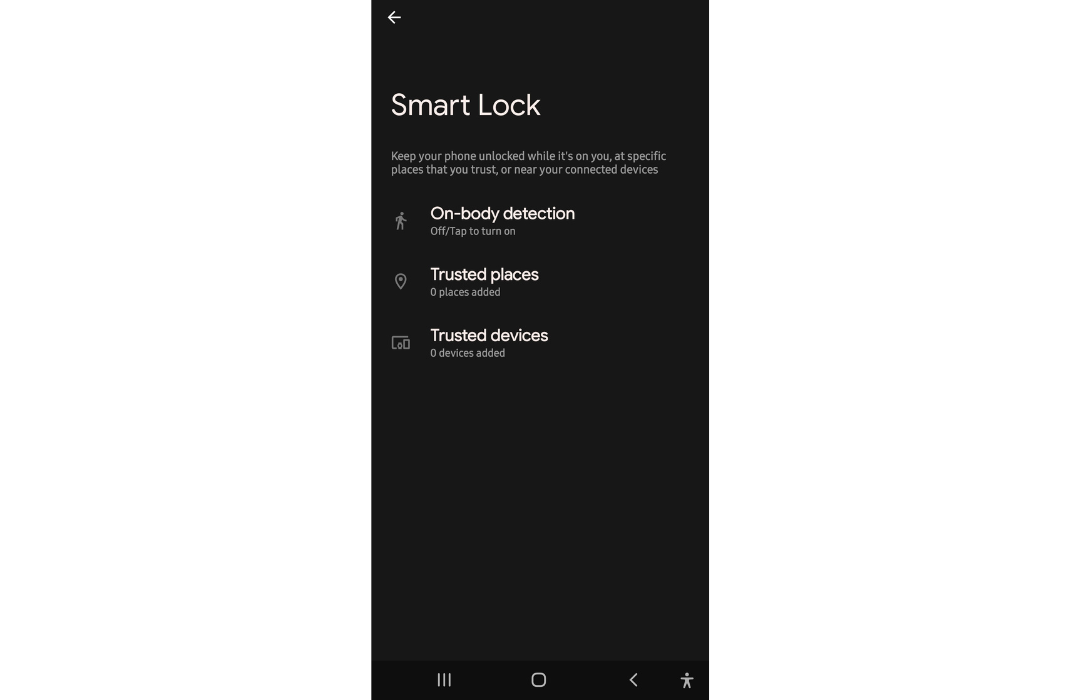
4. From this page, you can add Trusted locations, Trusted devices or activate On-body detection feature.
UI of smart lock feature
Is your smart-lock-phone secure enough to give you peace of mind?
Well, this is an argumentative question ?
It is true that, in addition to the smart actions offered, the smart lock may be vulnerable to attacks.
It is up to the end user to decide which circumstances are safe. They can choose any location in the world and a certain radius around it as a trusted location. For example, the users might think that their office or usually visiting coffee shop is secure.
After a certain point, this scenario can be dangerous because accessing a stolen phone is a piece of cake when it is unlocked. So, it’s not a smart idea for corporate devices. This risk is not worth taking for any device used for business purposes, especially one known to contain sensitive data. The same is true for your unlocked phone, which might be sensitive to the trusted device and on-body detection feature.
The on-body detection is suspicious since there is no way for the gadget to tell if the phone is on your body or if it has been stolen. The smart lock has not yet become smart enough to keep itself safe from theft. So, smartly using the smart lock relies on the end user.
How does Hexnode enhance the smartness of the smart lock?
UEM solutions like Hexnode enable granular control over the smart lock in your phone.
It provides a lock screen customization feature as well. Only smartphones with a secured lock screen can customize their lock screen (devices protected by a PIN, pattern or password lock).
The Hexnode for Work software needs to be updated on the device to modify the lock screen.
What businesses need to know about Android enterprise device management
Find out how Android Enterprise helps to address a number of challenges IT admins face in the management of Android devices within the enterprise.
It is supported for Android Enterprise Device Owner (Android v5.0 & later) and Android Enterprise Profile Owner (Android v6.0 & later).
If this option is deactivated in the UEM console, this will stop trusted agents, such as Bluetooth or NFC-connected devices, from unlocking the device. It ensures more security for the devices in device owner or profile owner mode.
Containerization helps in efficient data control mechanism for the individuals. It creates separate, encrypted containers for personal devices. Data and apps in this personal container space will remain private to the user. The main management modes with Android Enterprise are:
Device owner mode (Fully managed device) – In this mode, the organization will have total control of the entire device.
Profile owner mode (Work profile) – In this mode, the personal portion of the device stays the same, while the work apps and data are stored in a separate, self-contained region. There is no control for the organization over any of the personal data.
Lock Screen Camera:
It is supported for Android Enterprise Device Owner (Android v5.0 & later).
This option can turn off the camera and face unlock functions on a secured lock screen.
Lock Screen Notifications
It is supported for Android Enterprise Device Owner (Android v5.0 & later).
This feature can prevent notifications from showing on the secured lock screen.
Featured resource
Android Enterprise: Accommodating Mobility in the Enterprise
Get a clear picture of how Android Enterprise and UEM helps in bringing about a holistic management of Android devices.
It is supported for Android Enterprise Profile Owner (Android v6.0 & later) and Android Enterprise Device Owner (Android v5.0 & later).
Sensitive notifications with their contents hidden on the lock screen are known as redacted notifications. Lock Screen Notifications must be enabled to use this function.
Fingerprint Unlock
It is supported for Android Enterprise – Device Owner (Android v5.0 & later) and Android Enterprise Profile Owner (Android v6.0 & later).
Through this option, the fingerprint option can be enabled or disabled to unlock the device.
Face Unlock
It is similar to the fingerprint unlock option.
It is supported for Android Enterprise Device & Profile Owner (Android v9.0 & later).
Iris Scanner
It is supported for Android Enterprise Device & Profile Owner (Android v9.0 & later).
This option enables/disables the iris scanner feature on the secured lock screen.
Closing lines…
The built-in Smart Lock function on Android phones was created to make life easier for the user. As the saying goes, “Everything has positive and negative consequences”, the smartphone remote functions may also change the game. So, use it wisely to avoid being tricked!
Get started with Android Device Management
Uncover the secrets of Android device management with 14-day free trial of Hexnode.
Does disabling Smart Lock affect other biometric unlock methods like fingerprint?
No, disabling Smart Lock does not remove fingerprint, PIN, or password unlock options. Smart Lock only controls the convenience layer that keeps a device unlocked under trusted conditions. The underlying screen lock method set by the user or admin remains fully intact and enforceable.
Can Hexnode disable Smart Lock or Extend Unlock remotely across all managed devices?
Yes, Hexnode UEM can disable Trust Agents for Smart Lock remotely through the console for supported Android Enterprise enrollments. This stops trusted Bluetooth or NFC agents from unlocking the device without a passcode. The setting applies to devices enrolled as Android Enterprise Device Owner or Profile Owner.
Is Smart Lock a compliance risk for regulated industries like healthcare or finance?
Smart Lock can pose a compliance risk if left unmanaged, since a lost or stolen device may remain unlocked under trusted location or device conditions. Organizations handling sensitive data typically restrict or disable these features on corporate-owned devices. Enforcing this through a UEM policy removes reliance on individual user judgment.
What happens to Smart Lock settings if an Android device is factory reset?
A factory reset clears all Smart Lock configurations, including trusted places, trusted devices, and any enabled biometric options. The user or admin must reconfigure these settings after setup is complete. On managed devices, UEM policies are typically reapplied automatically during re-enrollment.
Does Android Enterprise treat Smart Lock differently on Device Owner versus Profile Owner devices?
Yes, support depends on the enrollment mode and Android version. Trust Agents for Smart Lock are supported on Android Enterprise Device Owner from Android 5.0 and Profile Owner from Android 6.0 onward. Some related lock screen controls, like Unredacted Notifications, share this same version-based split between the two modes.
Share
Lizzie Warren
A lil clumsy and a whole lot smiley, I'll bump into you with a smile...



 Lizzie Warren