Android Device Encryption vs iOS Device Encryption: A Comprehensive Comparison
Discover the core technical differences between Android and iOS encryption.

Get fresh insights, pro tips, and thought starters–only the best of posts for you.
“If I put this work email on my phone, can IT see my photos?”
It is a valid fear. For years, “Device Management” felt like surveillance because early MDM protocols were blunt instruments. These tools granted admins “God Mode” over a device just to push a Wi-Fi password.
But as we move through 2026, mobile operating system architecture has fundamentally changed. The era of surveillance is over; the era of Containerization is here.
At Hexnode, we prioritize radical transparency regarding the line between “Corporate” and “Personal.” This isn’t just a promise; it is a technical reality. We call it MDM privacy through The Privacy Partition.
Here is the engineering truth behind why we literally cannot see your personal data.
When an Enterprise Architect tells you “We respect your privacy,” you might stay skeptical.
However, when an Operating System Kernel tells you “Access Denied,” you can finally believe it.
Modern BYOD (Bring Your Own Device) enrollment creates a cryptographically secure wall between your personal life and your work life.
This barrier isn’t just a “policy” that an admin can toggle off. Instead, developers have hard-coded it into the file system of the device.
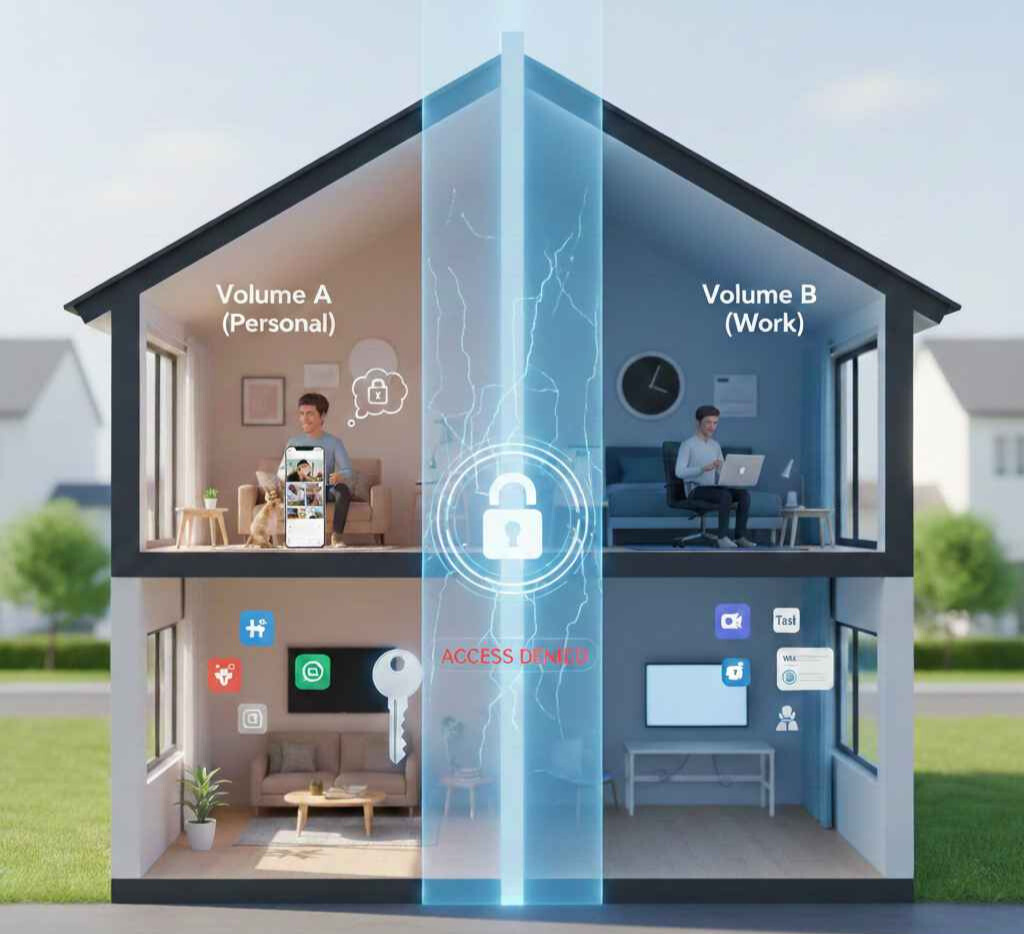
When you enroll an iPhone into Hexnode using Apple User Enrollment, we don’t just “hide” your photos. Apple actually creates a separate APFS (Apple File System) Volume on your device.
Think of it like a duplex house:
Because these two volumes have separate encryption keys, Hexnode only holds the key to Volume B. Consequently, we do not have—and cannot get—the key to Volume A. When an admin sends a “Query Device” command, the iOS kernel physically blocks any requests for data residing in the personal volume.
Android handles this with the Work Profile architecture. If you see a small blue “briefcase” icon on your apps, you are using a Work Profile.
This profile runs as a separate user ID at the OS level.
Furthermore, apps inside the Work Profile cannot communicate with apps outside of it unless the OEM explicitly bridges them.
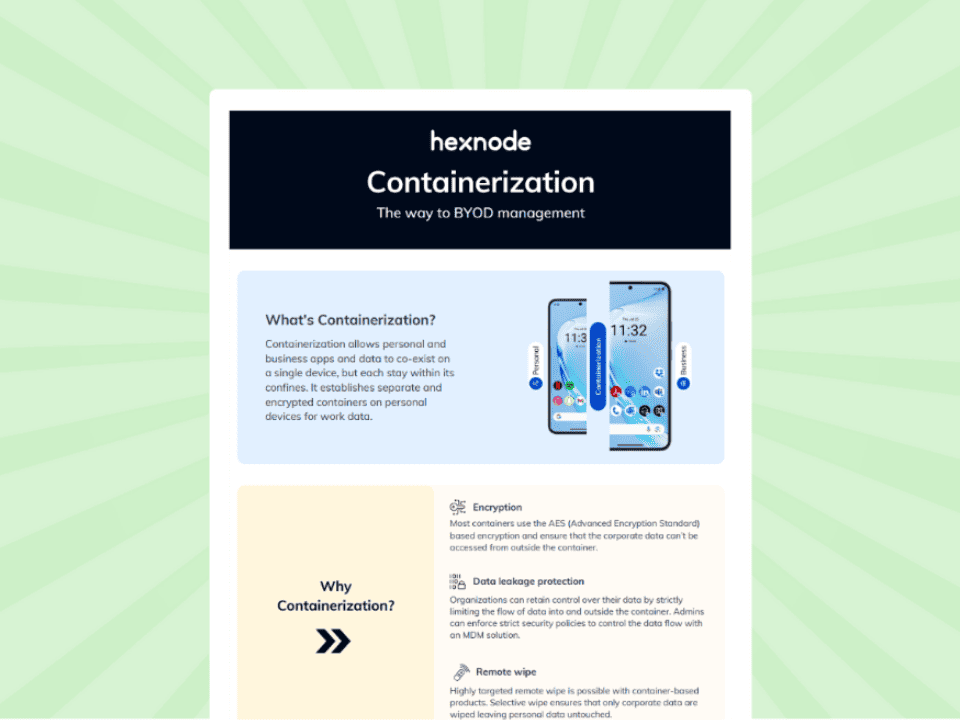
Learn how to implement physical data separation across your fleet with our comprehensive guide to BYOD containerization.
Download the InfographicLet’s kill the ambiguity. Below is the definitive list of what a Hexnode Admin can and cannot access on a BYOD-enrolled device.
| The Admin CANNOT See (The MDM Privacy Partition) | The Admin CAN See (Corporate Management) |
| ❌ Photos & Videos (Camera Roll is strictly off-limits) | ✅ Device Model & OS Version (e.g., iPhone 15, iOS 18.1) |
| ❌ iMessage / SMS / WhatsApp content | ✅ Managed App List (Only apps we installed) |
| ❌ Safari / Chrome Browsing History | ✅ Corporate Email (Within the Managed Mail App) |
| ❌ Personal App Inventory (e.g., Tinder) | ✅ Enforcement Status (Is the device encrypted? Is it jailbroken?) |
| ❌ FaceID / TouchID Bio-metrics (Stored in Secure Enclave) | ✅ Device Name (Often genericized for privacy) |
| ❌ Device Location (Unless “Lost Mode” is triggered on Corp devices) | ✅ Network Info (IP address when connected to Corp Wi-Fi) |
In a modern BYOD enrollment, an admin has more control over the ‘Candy Crush’ app they installed than they do over the photo you took of your cat five minutes ago.
The biggest fear employees have is the Remote Wipe.
“If I leave the company, will they erase my baby photos?”
While this was possible under old “Device Admin” methods (pre-2019), that “Factory Reset” command simply does not exist for User Enrollment or Work Profiles.
Hexnode can only issue an Enterprise Wipe.
What it does: It destroys the encryption key for the Work Volume.
The Result: The corporate Outlook app, the Wi-Fi password, and the VPN profile vanish instantly.
What stays: Your photos, your contacts, your personal apps, and your wallpaper remain untouched. It’s like we moved out of the duplex without waking up the neighbors.
Here is the secret IT doesn’t tell you: We don’t want to see your personal data.
If an admin could see your health data or personal texts, the company would become liable for that data under GDPR, CCPA, and HIPAA.
If we accidentally backed up your personal photos to our server, we would be paying storage costs for them.
Additionally, viewing private messages could result in costly privacy lawsuits. The MDM Privacy Partition protects you, but it also protects the Enterprise by ensuring the company is only liable for business data.
Don’t just take our word for it. You can easily verify that you are enrolled in an mdm privacy-safe mode.
For iPhone Users:
For Android Users:
To see this architecture in action, watch our step-by-step video on how Android BYOD management works with Hexnode to simplify the setup of secure work profiles.
Privacy isn’t a handshake agreement anymore; it is an architectural guarantee.
At Hexnode, we build tools that empower IT admins to secure corporate data without becoming surveillance agents. Ultimately, the MDM Privacy Partition ensures that you can bring your whole self to work, phone included, without ever sacrificing your digital privacy.
The IT Secret: We don’t want to see your data.
If an admin could see your personal photos or texts, the company would become legally liable for that data under GDPR and CCPA. By using the Privacy Partition, Hexnode protects the company just as much as it protects you.
So, go ahead and take that selfie. We couldn’t see it even if we wanted to.
Stop relying on "Policy" to protect privacy. Switch to Hexnode User Enrollment today to ensure cryptographic separation of work and personal data.
Start Your 14-day Free TrialA: No. If your device is enrolled as BYOD (User Enrollment for iOS or Work Profile for Android), Hexnode cannot access your camera roll, personal photos, or videos. Because the operating system stores personal data in a separate, encrypted volume.
A: No. An employer using Hexnode cannot see your personal browsing history in Safari or Chrome. However, IT can monitor traffic that flows through a specific Corporate VPN if one is configured for work tasks.
A: On a BYOD-enrolled device, no. Hexnode uses Enterprise Wipe, which only removes corporate apps, emails, and Wi-Fi profiles. Your personal photos, contacts, and apps are left completely intact.
A: Generally, no. On iOS User Enrollment, MDM does not have the “Locate Device” permission. On Android Work Profile, location tracking is restricted to the Work Profile apps only. Admins cannot track your physical movements unless you explicitly grant location permission to a specific corporate app (like a delivery driver app).