# Scripts to uninstall enterprise apps on Windows
Administrators might have to remove custom enterprise apps when they are no longer needed, become outdated, or vulnerable. This practice is essential for optimal maintenance of device performance and protection against malware attacks in corporate settings. By leveraging Hexnode’s [Execute Custom Script](https://www.hexnode.com/mobile-device-management/help/executing-custom-scripts-for-windows/), administrators can remotely uninstall enterprise apps to ensure secure and efficient device management.
Disclaimer:The sample scripts provided below are adapted from third-party open-source sites.
Batch script
------------
To uninstall .msi and .exe files,
wmic product where "name like '%%product\_name%%’'" call uninstall/nointeractive
1
wmic product where "name like '%%product\_name%%’'" call uninstall/nointeractive
For example, to remove the enterprise app 7-Zip,
` wmic product where "name like “’7%%'" call uninstall/nointeractive `
The **nointeractive** command ensures the silent uninstallation of the application without displaying any prompt to the user.
PowerShell script
-----------------
To uninstall .msi and .exe files,
$app = Get-WmiObject -Class Win32\_Product -Filter "Name LIKE '$App\_Name" if ($app -ne $null) { $result = $app.Uninstall() if ($result.ReturnValue -eq 0) { Write-Host "$($app.Name) successfully uninstalled." } else { Write-Host "Failed to uninstall $($app.Name). Error code: $($result.ReturnValue)" } } else { Write-Host "Application not found." }
1
2
3
4
5
6
7
8
9
10
11
$app = Get-WmiObject -Class Win32\_Product -Filter "Name LIKE '$App\_Name"
if ($app -ne $null) {
$result = $app.Uninstall()
if ($result.ReturnValue -eq 0) {
Write-Host "$($app.Name) successfully uninstalled."
} else {
Write-Host "Failed to uninstall $($app.Name). Error code: $($result.ReturnValue)"
}
} else {
Write-Host "Application not found."
}
In the above-mentioned PowerShell script, replace the $App\_Name with desired app name you wish to uninstall.
For example, to remove the enterprise app Google Chrome,
`
$app = Get-WmiObject -Class Win32_Product -Filter "Name LIKE '$Google_Chrome"
`
Once the script is executed, the application will be silently uninstalled on the device’s end.
You can also uninstall the app using the app identifier.
You can also view the script execution output in the **Action History** by clicking **Show Output** of the corresponding script execution.
If the uninstallation is successful, the output will return ‘$App\_Name successfully uninstalled’. If the attempt fails, the output will return ‘Failed to uninstall $App\_Name’ with an error code or ‘Application not found’ if the app is not installed on the device.
You can also uninstall the app using the app identifier,
msiexec.exe /x "app identifier" /quiet /norestart ALLUSERS=1
1
msiexec.exe /x "app identifier" /quiet /norestart ALLUSERS=1
In the above script, replace **app identifier** with the app identifier of the enterprise app you want to uninstall.
**quiet:** This ensures that the application is silently uninstalled.
**norestart:** This prevents the device from automatically restarting after the uninstallation process is complete.
**ALLUSERS=1:** This ensures that the application is uninstalled for all user accounts on the system.
For example, to uninstall the enterprise app 7-zip,
`msiexec.exe /x "{23170F69-40C1-2702-2201-000001000000}" /quiet /norestart ALLUSERS=1`
To find the app identifier of an enterprise app, follow the given steps.
On the portal,
1. Navigate to the **Applications** page of a device with the enterprise app installed.
2. Search for the required enterprise app.
3. The last column lists the identifier of the application.
[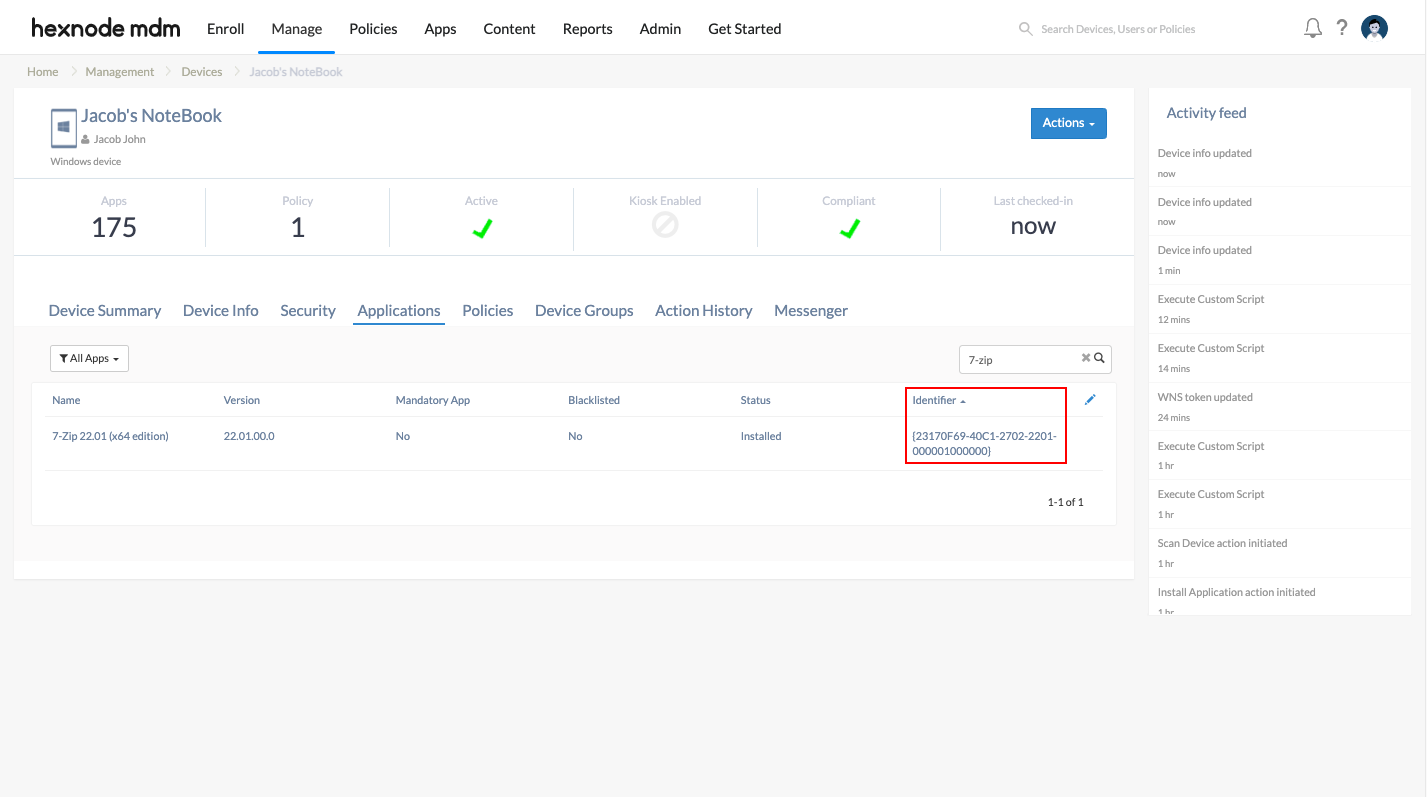](https://cdn.hexnode.com/mobile-device-management/help/wp-content/uploads/2021/09/App-identifier-for-Windows-apps.png)
To uninstall APPX/MSIX bundles, use the Get-AppxPackage command of PowerShell,
Get-AppxPackage \*AppPackageName\* -AllUsers | Remove-AppxPackage -AllUsers
1
Get-AppxPackage \*AppPackageName\* -AllUsers | Remove-AppxPackage -AllUsers
Once you have identified the app package name, uninstall it using the **Remove-AppxPackage** command.
For example, to uninstall Microsoft Teams,
`Get-AppxPackage *MicrosoftTeams* -AllUsers | Remove-AppxPackage -AllUsers`
To list all installed APPX/MSIX packages,
Get-AppxPackage -Allusers | Select Name
1
Get-AppxPackage -Allusers | Select Name
This command will list APPX/MSIX packages installed across all user profiles on Windows device.
Notes:- Some apps have custom executable files (.exe file) that uninstall the apps. Such apps might not get uninstalled using these commands. To uninstall such apps using scripts, you might have to use their UninstallString.
E.g., To uninstall Firefox, run a batch script with the UninstallString along with the parameter /S for silent uninstallation.
` “C:\Program Files\Mozilla Firefox\uninstall\helper.exe” /S `
- It is recommended to manually validate the script execution on a system before executing the action in bulk.
- Hexnode will not be responsible for any damage/loss to the system on the behavior of the script.