# Script to fetch Google Chrome extensions installed on Mac
Organizations consider Google Chrome a necessary utility that improves users’ browsing experience. However, as an administrator, if you want to exert more control over the Chrome browser and determine the extensions installed on the macOS devices, you can get it done quickly with the help of scripts. The [Execute Custom Script](https://www.hexnode.com/mobile-device-management/help/how-to-run-scripts-on-mac-using-hexnode-mdm/) action enables you to execute customized scripts for performing necessary operations tailored for your needs.
Disclaimer:The sample scripts provided below are adapted from third-party open-source sites.
Get the list of extensions
---------------------------
Like every app, browser extensions also have a unique ID associated with them, where each extension ID is 32 characters long. The following scripts fetch the complete list of extension IDs installed on the devices.
Script to fetch the Google Chrome extensions installed on Mac
\#!/bin/bash currentUser=$(ls -l /dev/console | awk '{print $3}') ext\_dir="/Users/$currentUser/Library/Application Support/Google/Chrome/Default/Extensions/" for i in $(find "$ext\_dir" -name 'manifest.json'); do ue=$(basename "$(dirname "$(dirname "$i")")") echo "$ue" done
1
2
3
4
5
6
7
\#!/bin/bash
currentUser=$(ls -l /dev/console | awk '{print $3}')
ext\_dir="/Users/$currentUser/Library/Application Support/Google/Chrome/Default/Extensions/"
for i in $(find "$ext\_dir" -name 'manifest.json'); do
ue=$(basename "$(dirname "$(dirname "$i")")")
echo "$ue"
done
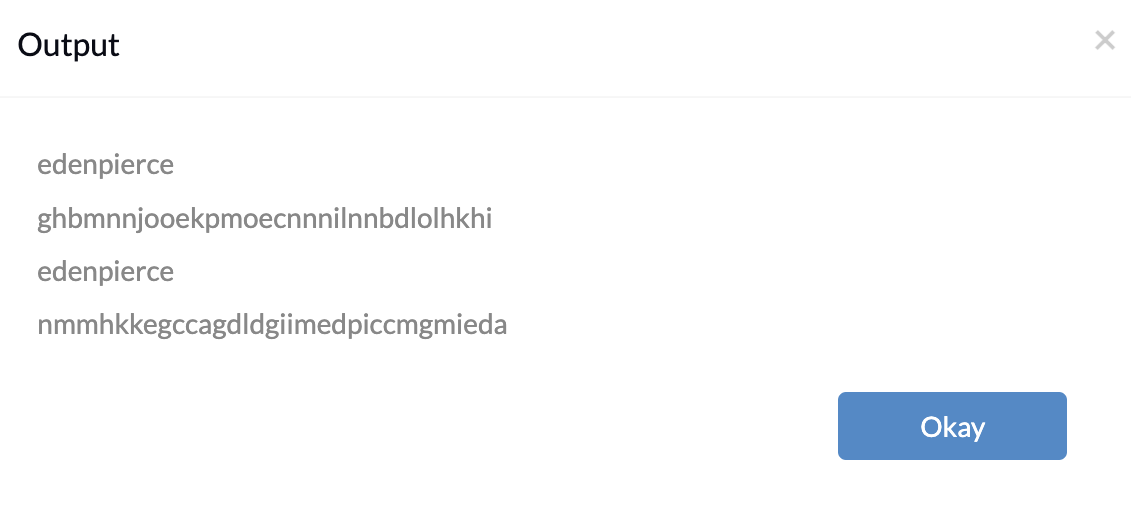
The script iterates through each Chrome extension’s manifest.json file in every folder within the directory **“/Users/$currentUser/Library/Application Support/Google/Chrome/Default/Extensions/”**. It extracts the extension ID from the .json file and lists them, along with the user account, in the Action History of the Hexnode portal.
[](https://cdn.hexnode.com/mobile-device-management/help/wp-content/uploads/2024/01/Installed-Chrome-extensions-ID.png)
Find if a given extension is installed on Mac
---------------------------------------------
The following scripts help you to determine if a specific extension is installed on Mac. You can search for a given extension on the device using its extension ID.
Script to find if a given extension is installed on Mac
\#!/bin/sh currentUser=`ls -l /dev/console | cut -d " " -f 4` if \[ -d "/Users/$currentUser/Library/Application Support/Google/Chrome/Default/Extensions/extension\_ID" \] ; then STATUS="The given extension is installed." else STATUS="Not installed." fi echo "$STATUS"
1
2
3
4
5
6
7
8
\#!/bin/sh
currentUser=`ls -l /dev/console | cut -d " " -f 4`
if \[ -d "/Users/$currentUser/Library/Application Support/Google/Chrome/Default/Extensions/extension\_ID" \] ; then
STATUS="The given extension is installed."
else
STATUS="Not installed."
fi
echo "$STATUS"
For example,
An example script to find if a given extension is installed on Mac
\#!/bin/sh currentUser=`ls -l /dev/console | cut -d " " -f 4` if \[ -d "/Users/$currentUser/Library/Application Support/Google/Chrome/Default/Extensions/ nmmhkkegccagdldgiimedpiccmgmieda" \] ; then STATUS="The given extension is installed." else STATUS="Not installed." fi echo "$STATUS"
1
2
3
4
5
6
7
8
\#!/bin/sh
currentUser=`ls -l /dev/console | cut -d " " -f 4`
if \[ -d "/Users/$currentUser/Library/Application Support/Google/Chrome/Default/Extensions/ nmmhkkegccagdldgiimedpiccmgmieda" \] ; then
STATUS="The given extension is installed."
else
STATUS="Not installed."
fi
echo "$STATUS"
[](https://cdn.hexnode.com/mobile-device-management/help/wp-content/uploads/2024/01/Find-if-the-Chrome-extension-is-installed.png)
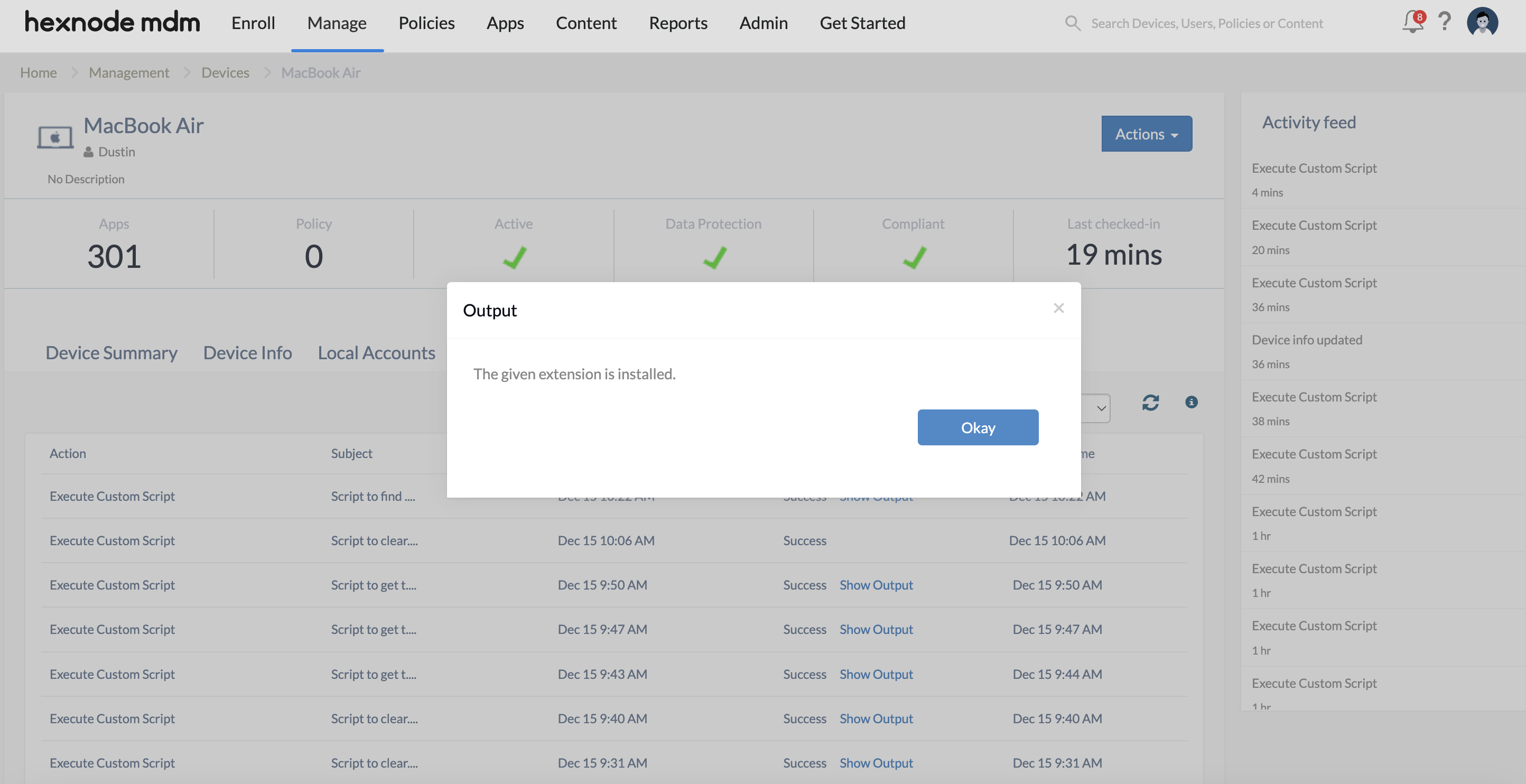
The script checks whether the provided extension ID, “nmmhkkegccagdldgiimedpiccmgmieda”, is present within the Chrome extension directory. If the ID is found, it will display ‘The given extension is installed’. If it is not found, it will display ‘Not installed’.
To obtain the extension ID,
- Open Google Chrome on the device.
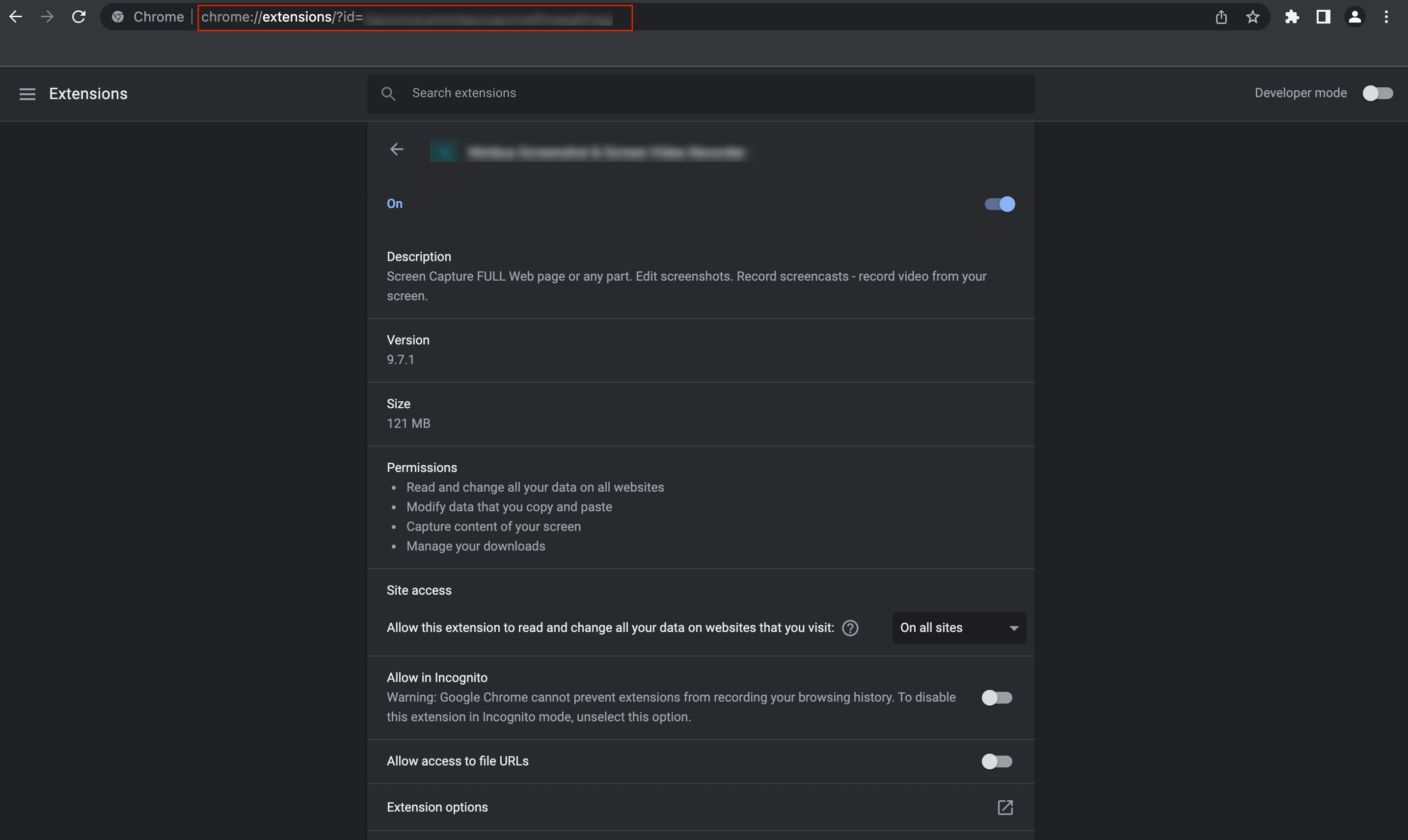
- Type in **chrome://extensions** on the search tab. It lists all the extensions installed on the device.
- Click on the **Details** button corresponding to the required extension. It appends the extension ID in the search bar.
[](https://cdn.hexnode.com/mobile-device-management/help/wp-content/uploads/2022/01/fetch-extension-id-.png)
Or,
- Navigate to **/Users/currentUser/Library/Application Support/Google/Chrome/Default/Extensions** on the macOS device by running the **‘open /Users/currentUser/Library/Application\\ Support/Google/Chrome/Default/Extensions’** command in the Terminal app. Ex: /Users/Darwin/Library/Application Support/Google/Chrome/Default/Extensions
- All the installed extensions can be found there, and the names of the folders found in this directory denote extension ID.
[](https:2024/01/Installed-Google-Chrome-extension-IDs.png)
Notes:- It is recommended to manually validate the script execution on a system before executing the action in bulk.
- Hexnode will not be responsible for any damage/loss to the system on the behavior of the script.