# Script to auto-launch app in multi-app kiosk on Windows
When working with multi-app kiosk systems, it may be necessary that a specific app launches itself at login. For instance, in self-service kiosks, having the primary app auto-launched can significantly enhance the user experience. Likewise, in educational institutions or corporate training centers, auto launching the app used as the teaching aid can improve the experience for both teachers and students. Additionally, in customer support centers, having the ticketing app auto-launched on their self-service kiosks will allow customers to input their queries promptly, enabling the support team to address them efficiently and improve the overall process. While not all multi-app kiosk systems may require auto-launching, when necessary, IT administrators can remotely execute the PowerShell script provided below, utilizing Hexnode’s [Execute Custom Script](https://www.hexnode.com/mobile-device-management/help/executing-custom-scripts-for-windows/) feature.
Disclaimer:
The sample scripts provided below are adapted from third-party open-source sites.
Script to auto launch an app on multi-app kiosk mode
----------------------------------------------------
Save the below script with .ps1 extension and execute it.
Script to auto-launch app in multi-app kiosk on Windows
\#specify the username to which you would like to configure kiosk policy #and make sure that the application is installed for the kiosk user $kioskUsername = "kiosk\_username" $AppPath = "C:\\Program Files\\Google\\Chrome\\Application\\chrome.exe" #replace $AppPath with application path $AppLinkPath = "%ALLUSERSPROFILE%\\Microsoft\\Windows\\Start Menu\\Programs\\Google Chrome.lnk"; #replace $AppLinkPath with the desktop application link path try { #checking whether user exists in the device or not. $user = Get-WmiObject win32\_useraccount | where-object {$\_.Name -eq "$kioskUserName"} if($user.Name -ne "$kioskUserName") { Write-Host "Local user doesn't exist. Please verify the availability of user: $kioskUserName" return } #configuring kiosk policy $nameSpaceName="root\\cimv2\\mdm\\dmmap" $className="MDM\_AssignedAccess" $obj = Get-CimInstance -Namespace $namespaceName -ClassName $className Add-Type -AssemblyName System.Web $configuration = (@" \]\]> $kioskUsername "@) $configuration = $configuration.Replace('$kioskUsername',$kioskUsername) $configuration = $configuration.Replace('$AppPath',$AppPath) $configuration = $configuration.Replace('$AppLinkPath',$AppLinkPath) $obj.Configuration = \[System.Web.HttpUtility\]::HtmlEncode($configuration) Set-CimInstance -CimInstance $obj Write-Host "Successfully configured kiosk policy" }catch { Write-Host $\_.Exeption.Message }
1
2
3
4
5
6
7
8
9
10
11
12
13
14
15
16
17
18
19
20
21
22
23
24
25
26
27
28
29
30
31
32
33
34
35
36
37
38
39
40
41
42
43
44
45
46
47
48
49
50
51
52
53
54
55
56
57
58
59
60
61
62
63
64
65
66
67
68
69
\#specify the username to which you would like to configure kiosk policy
\#and make sure that the application is installed for the kiosk user
$kioskUsername = "kiosk\_username"
$AppPath = "C:\\Program Files\\Google\\Chrome\\Application\\chrome.exe" \#replace $AppPath with application path
$AppLinkPath = "%ALLUSERSPROFILE%\\Microsoft\\Windows\\Start Menu\\Programs\\Google Chrome.lnk"; \#replace $AppLinkPath with the desktop application link path
try
{
\#checking whether user exists in the device or not.
$user = Get-WmiObject win32\_useraccount | where-object {$\_.Name -eq "$kioskUserName"}
if($user.Name -ne "$kioskUserName")
{
Write-Host "Local user doesn't exist. Please verify the availability of user: $kioskUserName"
return
}
\#configuring kiosk policy
$nameSpaceName="root\\cimv2\\mdm\\dmmap"
$className="MDM\_AssignedAccess"
$obj = Get-CimInstance -Namespace $namespaceName -ClassName $className
Add-Type -AssemblyName System.Web
$configuration = (@"
\]\]>
$kioskUsername
"@)
$configuration = $configuration.Replace('$kioskUsername',$kioskUsername)
$configuration = $configuration.Replace('$AppPath',$AppPath)
$configuration = $configuration.Replace('$AppLinkPath',$AppLinkPath)
$obj.Configuration = \[System.Web.HttpUtility\]::HtmlEncode($configuration)
Set-CimInstance -CimInstance $obj
Write-Host "Successfully configured kiosk policy"
}catch
{
Write-Host $\_.Exeption.Message
}
Executing this script will cause the particular app to auto-launch whenever the user logs into the kiosk. That is, in this case, once the script is executed, Google Chrome will get launched automatically each time the user logs in to the kiosk account.
When executing the script, assign the username of the corresponding kiosk user, application path of the required app and the desktop application link path to the variables $kioskUsername, $AppPath and $AppLinkPath, respectively.
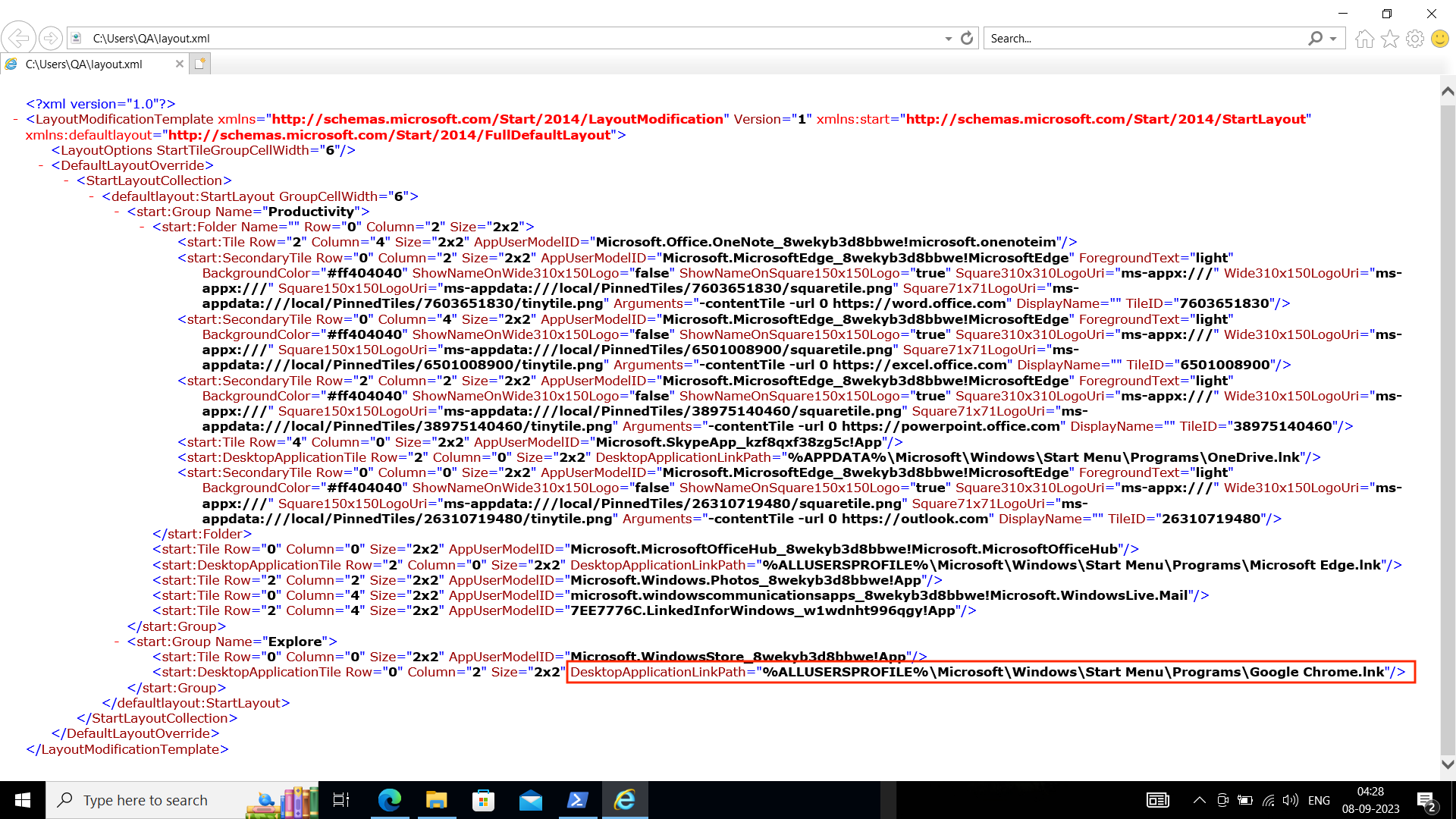
To fetch the desktop application link path, pin the application to start layout and export it by running the script given below:
Script to export start layout
export-startlayout
1
export-startlayout
For example,
Script to export start layout
export-startlayout C:\\layout.xml
1
export-startlayout C:\\layout.xml
Open the newly exported (XML) file to find the desktop application link path of the required app.
[](https://cdn.hexnode.com/mobile-device-management/help/wp-content/uploads/2023/09/Fetch-application-link-path-by-exporting-start-layout.png)
Notes:- Ensure that the local user is present on the device before configuring kiosk mode.
- It is recommended to manually validate the script execution on a system before executing the action in bulk.
- Hexnode will not be responsible for any damage/loss to the system on the behavior of the script.