# How to Update Enterprise Apps in Android Enterprise enabled devices
Enterprise or in-house apps are tailor-made apps developed to meet the custom requirements of an organization. Such apps are usually developed within the organization and therefore are not available to the users outside the organization. Since these apps are designed to suit a custom audience, publishing them in a public app storefront like Google Play, where everyone can access the applications, is undesirable. So, to deploy, manage and monitor the app securely, you can use Hexnode’s app management features. This enables organizations to [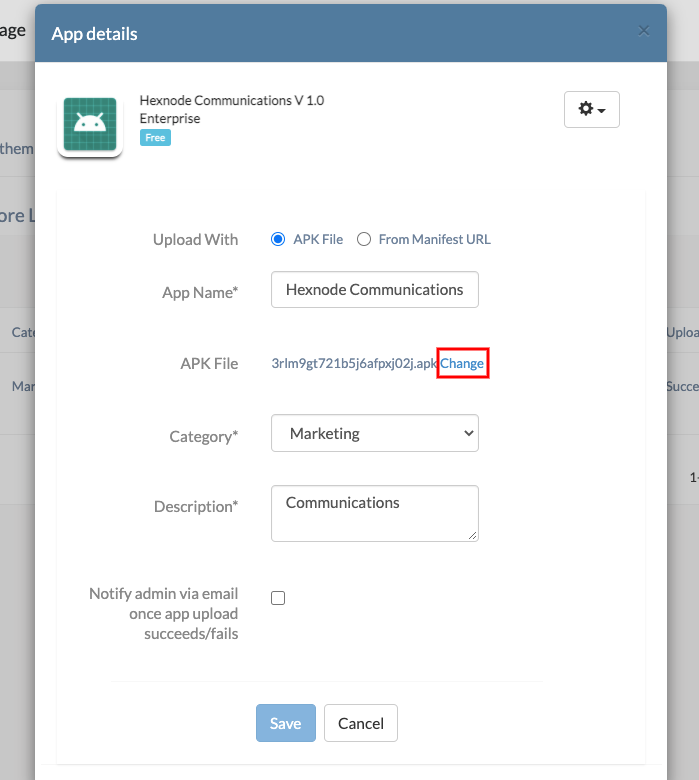](https://www.hexnode.com/mobile-device-management/help/distribute-android-enterprise-apps/)
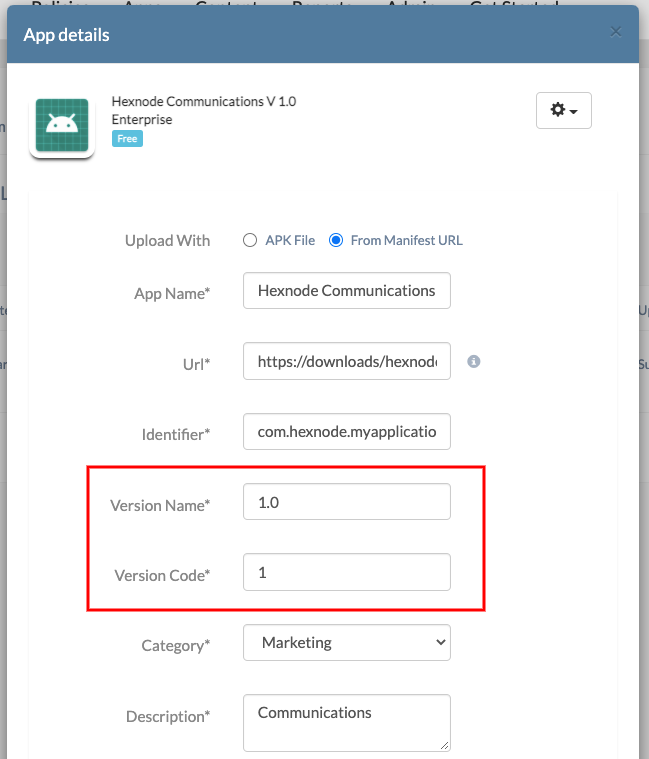
If the app manifest path is specified in Hexnode,
1. On your Hexnode UEM console, navigate to **Apps**.
2. Find the app and click on the app icon.
3. Click on the gear icon drop-down to the left of the ‘App Upload Details’ pop-up tab.
4. Click on **Edit**. On the ‘App details’ page, change the version name and code as at the source of download. Change the Url if the APK file location is changed.
5. Click on **Save**.
### Case 2
: If the former version of the app was not added in Hexnode or if you want to add the latest version as a new app. [Learn](https://www.hexnode.com/mobile-device-management/help/distribute-android-enterprise-apps/#add-enterprise-app-to-the-hexnode-app-inventory) how to add a new enterprise app in Hexnode.
Install the updates on Android devices
--------------------------------------
### Case 1
: If the app APK was initially distributed via the mandatory app policy in Hexnode, the update will get automatically deployed if the policy remains associated with the device.
### Case 2
: If the older app APK was directly added to the device or if it was deployed via the Hexnode remote action or if the mandatory app policy via which it was distributed is not associated with the device anymore.
Method 1: One-time remote action
1. On your Hexnode UEM console, navigate to **Manage** and choose the devices from the list.
2. Tap on **Actions** and select **Install Application**.
3. Choose the updated app and click **Done**.
The app APK will be pushed to the device.
Method 2: Mandatory app policy
1. On your Hexnode UEM console, navigate to **Policies**.
2. Select an existing policy or create a new one by clicking on **New Policy**.
3. Choose **Android > App Management > Mandatory Apps** and click on **Configure**.
4. Tap on **+Add > Add App**. Choose the updated app and click **Done**.
5. Now to associate the policy, tap on **Policy Targets**.
6. Choose the devices, users, groups or domains you want to associate the policy with and click **OK**.
7. Save the policy.
Notes- In-house app updates will be silently installed on Device Owner enrolled Android Enterprise devices.
- On devices enrolled as Profile Owner, update the APKs of the privately published in-house apps in the Google Play Console for silent installation.
To update the APK of the privately published app,
1. On your Hexnode UEM console, go to **Apps**.
2. Click on **Add Apps > Managed Google Apps**.
3. Click on **Private apps**. Select the app and click on **Edit**.
4. Replace the APK file with the new one before saving.
- The **Downloads** tab in the Hexnode for Work app helps users keep track of the download status of the enterprise apps (APK files) pushed from the Hexnode portal.