# Custom configuration profile to add Chrome extensions on macOS devices
Google Chrome extensions are small add-on applications and features that can be installed in Chrome to customize and enhance the browsing experience. They are essentially small programs integrated into the Google Chrome app and serve a single purpose. For example, a grammar checker extension is used to correct typos, and an ad blocker extension can remove unnecessary ads from popping up while web surfing, etc. Instead of manually adding Chrome extensions from the Chrome Web Store, the user can apply a custom configuration profile to add the extensions on macOS devices. IT admins can remotely deploy this custom configuration profile to multiple macOS devices in their organization using Hexnode’s [Deploy Custom Configuration](https://www.hexnode.com/mobile-device-management/help/how-to-deploy-custom-configuration-profiles-to-macos-devices/) feature.
Notes:- This configuration profile is supported on macOS 10.13 and later devices enrolled in Hexnode.
- Ensure that the Google Chrome app is already installed on the device.
Disclaimer:
The configuration profile provided below is adapted from a third-party open-source site.
Configuration profile to add Chrome extensions
----------------------------------------------
Configuration profile to add Chrome extensions
PayloadIdentifier com.company.profile.chrome PayloadRemovalDisallowed PayloadScope System PayloadType Configuration PayloadUUID 2016-09-12-07-13 PayloadOrganization Your Company PayloadVersion 1 PayloadDisplayName CONFIGURATION NAME PayloadContent PayloadType com.apple.ManagedClient.preferences PayloadVersion 1 PayloadIdentifier com.normandale PayloadUUID 121-qasd PayloadEnabled PayloadDisplayName Custom: (com.google.Chrome) PayloadContent com.google.Chrome Forced mcx\_preference\_settings ExtensionInstallForcelist PLACE EXTENSION IDENTIFIER HERE;https://clients2.google.com/service/update2/crx
1
2
3
4
5
6
7
8
9
10
11
12
13
14
15
16
17
18
19
20
21
22
23
24
25
26
27
28
29
30
31
32
33
34
35
36
37
38
39
40
41
42
43
44
45
46
47
48
49
50
51
52
53
54
55
56
57
58
59
60
61
62
63
64
65
66
67
68
69
70
71
72
73
74
75
76
77
78
79
80
81
82
83
84
85
86
87
88
89
90
91
92
93
94
95
96
97
98
99
100
101
102
103
104
105
106
107
108
109
110
111
112
113
PayloadIdentifier
com.company.profile.chrome
PayloadRemovalDisallowed
PayloadScope
System
PayloadType
Configuration
PayloadUUID
2016-09-12-07-13
PayloadOrganization
Your Company
PayloadVersion
1
PayloadDisplayName
CONFIGURATION NAME
PayloadContent
PayloadType
com.apple.ManagedClient.preferences
PayloadVersion
1
PayloadIdentifier
com.normandale
PayloadUUID
121-qasd
PayloadEnabled
PayloadDisplayName
Custom: (com.google.Chrome)
PayloadContent
com.google.Chrome
Forced
mcx\_preference\_settings
ExtensionInstallForcelist
PLACE EXTENSION IDENTIFIER HERE;https://clients2.google.com/service/update2/crx
Replace `CONFIGURATION NAME` with the name you want the configuration to be called. Also replace the `PLACE EXTENSION IDENTIFIER HERE` with the ID of the extension you want to add in the endpoint’s Chrome browser. To get the identifier, go to the extension in the Chrome Web Store and get it from your URL. For example, the identifier of the Google Translate extension looks like this:
[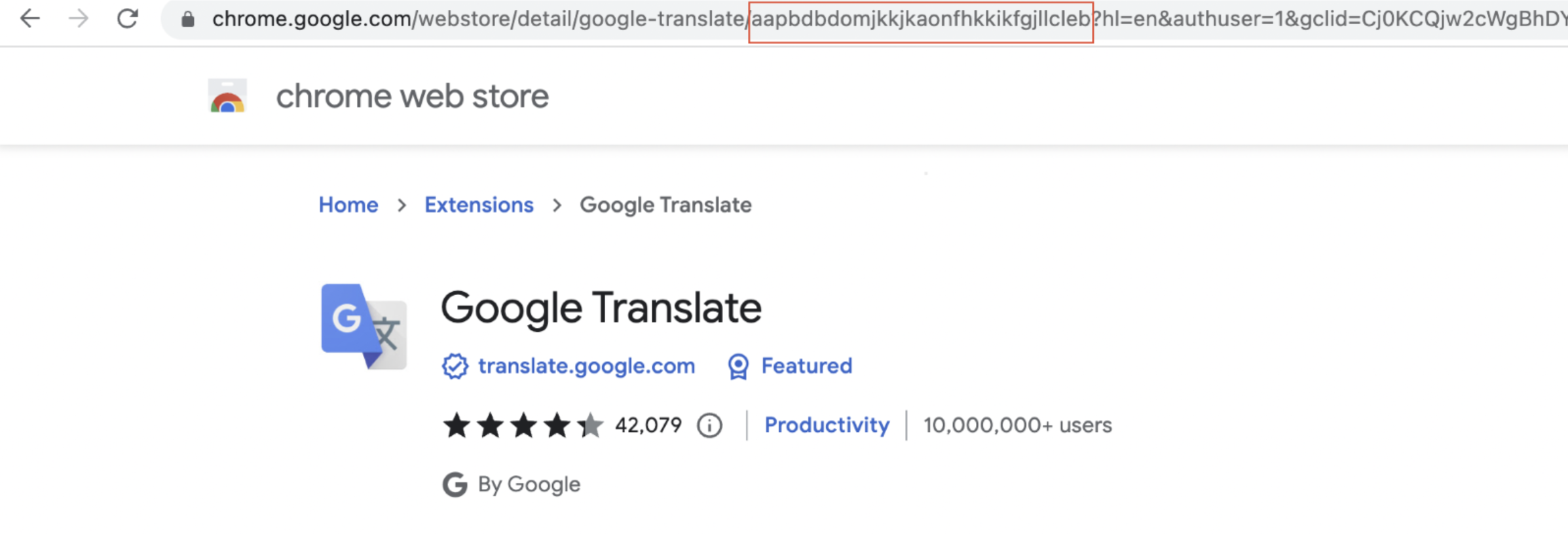](https://cdn.hexnode.com/mobile-device-management/help/wp-content/uploads/2024/02/Retrieving-the-ID-of-a-Chrome-extension-for-the-configuration-profile-for-Mac.png)
What happens at the device end?
-------------------------------
Once the policy and custom configuration are associated, click on the jigsaw icon at the top-right of the opened Chrome window to bring up the extensions manager. You can see the configured extension added to the list.
[](https:2024/02/Mac-adds-the-Chrome-extensions-setup-via-configuration-profile.png)
Notes:- To create and customize configuration profiles, you can use tools like Apple Configurator, Profile Manager, or manually create them using text editors.
- Use non-encrypted .mobileconfig, .xml, or plist files to deploy profiles across macOS devices.
- Ensure that you do not associate conflicting configurations with the devices.
- It is recommended to manually validate the configuration profile execution on a system before executing the action in bulk.
- Hexnode will not be responsible for any damage/loss to the system on the behavior of the configuration profile.