# Configuration profile to set macOS passcode settings
The increased adoption of macOS devices in corporate environments has emphasized the importance of data security for organizations. Administrators prefer to implement a strong passcode policy for enterprise devices to prevent unauthorized access to sensitive information, reduce the risk of data breaches, and ensure compliance with security standards. Using Hexnode’s [Custom Configuration](https://www.hexnode.com/mobile-device-management/help/how-to-deploy-custom-configuration-profiles-to-macos-devices/) feature, you can configure the passcode settings according to your organization’s policy.
Disclaimer:
The sample configuration profiles provided below are created using various profile creator applications.
Note:
This configuration profile is supported on **macOS 10.7 or later**.
Configure passcode settings
---------------------------
Configuration profile to set macOS passcode settings
PayloadContent allowSimple forcePIN maxFailedAttempts 5 minutesUntilFailedLoginReset 1 maxGracePeriod 5 maxInactivity 20 maxPINAgeInDays 30 minLength 8 minComplexChars 0 pinHistory 2 requireAlphanumeric changeAtNextAuth PayloadIdentifier com.apple.mobiledevice.passwordpolicy.7C475FC9-DC75-4673-9FC7-EBA273B3932A PayloadType com.apple.mobiledevice.passwordpolicy PayloadUUID 7C475FC9-DC75-4673-9FC7-EBA273B3932A PayloadVersion 1 PayloadDisplayName Passcode PayloadIdentifier MacBook.251802D5-F7C5-40E6-AA05-5D56CF044FD5 PayloadType Configuration PayloadUUID 13BDBE05-B07D-4058-AC97-386DD97FA198 PayloadVersion 1
1
2
3
4
5
6
7
8
9
10
11
12
13
14
15
16
17
18
19
20
21
22
23
24
25
26
27
28
29
30
31
32
33
34
35
36
37
38
39
40
41
42
43
44
45
46
47
48
49
50
51
52
53
PayloadContent
allowSimple
forcePIN
maxFailedAttempts
5
minutesUntilFailedLoginReset
1
maxGracePeriod
5
maxInactivity
20
maxPINAgeInDays
30
minLength
8
minComplexChars
0
pinHistory
2
requireAlphanumeric
changeAtNextAuth
PayloadIdentifier
com.apple.mobiledevice.passwordpolicy.7C475FC9-DC75-4673-9FC7-EBA273B3932A
PayloadType
com.apple.mobiledevice.passwordpolicy
PayloadUUID
7C475FC9-DC75-4673-9FC7-EBA273B3932A
PayloadVersion
1
PayloadDisplayName
Passcode
PayloadIdentifier
MacBook.251802D5-F7C5-40E6-AA05-5D56CF044FD5
PayloadType
Configuration
PayloadUUID
13BDBE05-B07D-4058-AC97-386DD97FA198
PayloadVersion
1
On macOS devices, you can configure the following settings for passcode:
KeyDescriptionallowSimpleIf this key is set to false, the user is prevented from using a simple passcode, for instance, repeating characters 222, 4455yy, or that takes the format 123 or ABC.requireAlphanumericIf this key is set to true, the user must employ a mix of number and letters in the password, instead of using numbers only. By default, the key is set to false.
forcePINIf this key is set to true, the user is forced to enter a PIN. By default, the key is set to false.
changeAtNextAuthIf this key is set to true, the user will be prompted to reset their password the next time they attempt to log in. By default, the key is set to false.
minLengthThis key is used to set the minimum length of the device passcode between 1 and 16. For instance, if you set the minimum passcode length to 7, users won’t be able to set a password with 6 or fewer characters.minComplexCharsThis key refers to the minimum number of special characters (like ‘&’, ‘%’,’$’ or ‘#’) that must be included in a passcode, in addition to any numbers and letters.maxPINAgeInDaysThis key determines how long a passcode remains valid before it expires and requires the user to change it before they can access the device. The number of days can be set between 0 and 730. If the setting is set to 0, the user is not required to change the passcode. The default value is set to 0.
maxInactivityThis key determines the maximum amount of time (up to 60 minutes) that the device can be inactive before it locks itself and requires the user to enter the passcode to unlock it again.pinHistory This key saves a certain number of past passcodes that can’t be used again as a new passcode. You can choose the number of past passcodes to be saved on the device, from 0 to 50. By default, no password is saved, which means you can reuse the current password as the new password when it expires.maxGracePeriod This key specifies the maximum amount of time (in minutes) that the user can wait before entering the passcode to unlock the device. The default value is 0, which means no grace period is allowed and a passcode is required right away.maxFailedAttemptsThis key determines the number of incorrect password attempts on the device’s lock screen before being temporarily locked out. The allowed number of failed attempts can be set is between 2 and 11. After 6 unsuccessful attempts, a time delay is added before another passcode can be entered, and the delay increases with each additional attempt. Set the **minutesUntilFailedLoginReset** key to specify the delay period before the user can try again. If the allowed number of attempts is exceeded in macOS, the device is locked.
minutesUntilFailedLoginResetThis key determines the time (in minutes) that a user must wait before they can try to log in again after reaching the maximum number of failed login attempts. To use this feature, the “maxFailedAttempts” key must be configured as well.
Note:
This key is supported on macOS 10.10 or later.
What happens at the device end?
-------------------------------
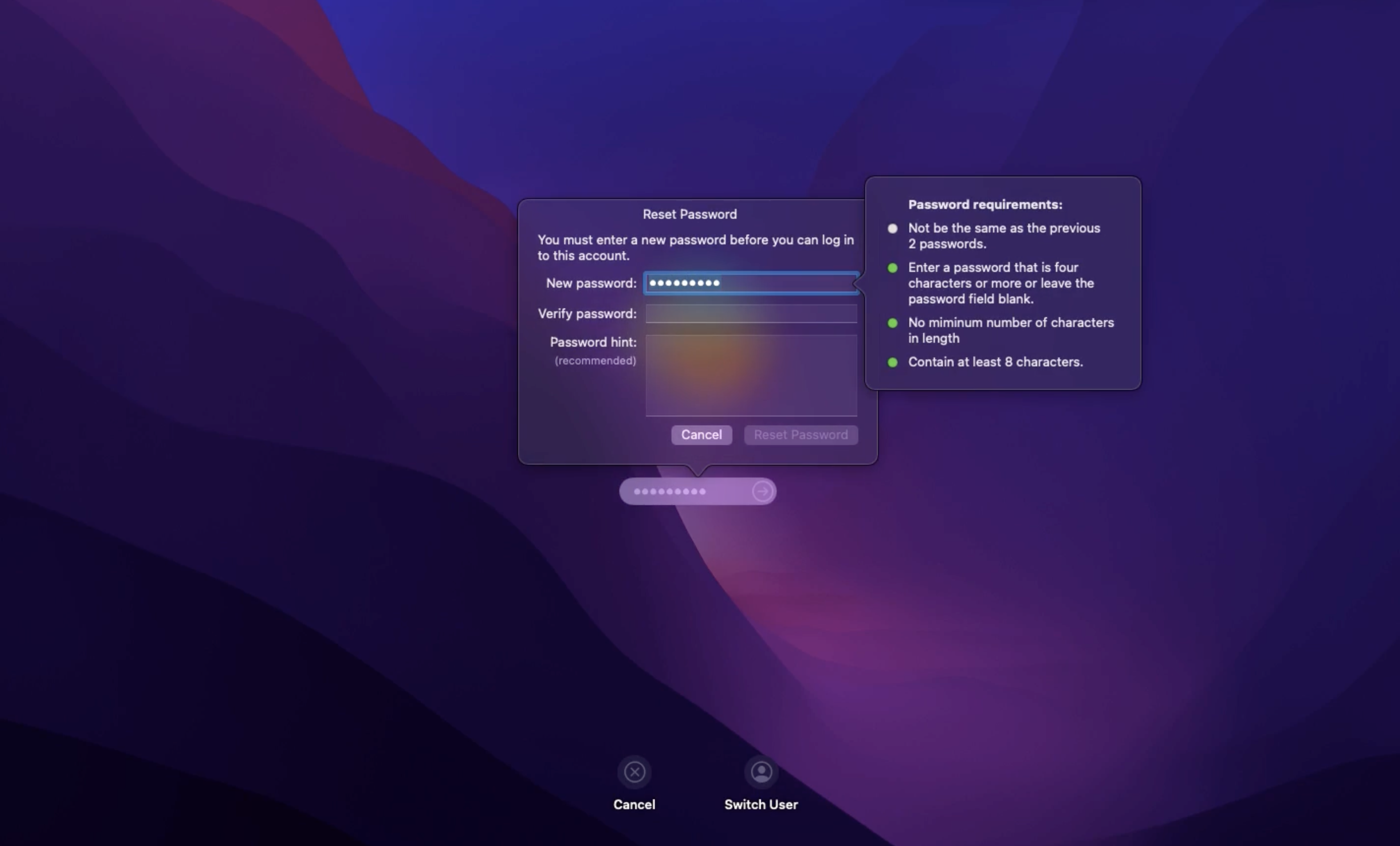
On deploying the configuration profile, the users will be prompted to set up their password based on the configured passcode settings on the login window. To successfully log in, the new password entered must meet the criteria specified in the passcode settings.
[](https://cdn.hexnode.com/mobile-device-management/help/wp-content/uploads/2024/05/Use-a-configuration-profile-to-set-macOS-passcode-settings.png)
Notes:- To create and customize configuration profiles, you can use tools like Apple Configurator, Profile Manager or manually create them using text editors.
- Use non-encrypted .mobileconfig, .xml, or plist files to deploy profiles across devices.
- Ensure that you do not associate conflicting configurations with the devices.
- Use wildcards to fetch key values from the portal.
- It is recommended to manually validate the configuration profile on a system before executing it in bulk.
- Hexnode will not be responsible for any damage/loss to the system on the behavior of the configuration profile.