# Configuration profile to configure iOS Email settings
Setting up email on managed devices is pivotal in maximizing organizational connectivity and productivity. Email serves as a central hub for communication, collaboration, and coordination within the organization. While there are various ways to configure email accounts for employees, this document discusses how administrators can use a custom profile to deploy email account configurations on iOS devices. IT administrators can deploy the configuration profile for iOS email settings using Hexnode’s [Deploy Custom Configuration](https://www.hexnode.com/mobile-device-management/help/how-to-deploy-custom-configuration-profiles-to-ios-devices/) feature.
Note:
This configuration profile is supported on devices running iOS 4.0 or later.
Disclaimer:
The configuration profile provided below is adapted from a third-party open-source site.
Configuration profile to configure Email account
------------------------------------------------
Configuration profile to add Email account on iOS device
PayloadContent EmailAccountDescription Enter Email Account Description EmailAccountName Enter the Name Email Account EmailAccountType Enter Email Account Protocol Type EmailAddress Enter the Email Address IncomingMailServerAuthentication EmailAuthPassword IncomingMailServerHostName Enter the IncomingMailServerHostName IncomingMailServerPortNumber Enter port number for IncomingMailServer IncomingMailServerUseSSL IncomingMailServerUsername Enter the Username of Incoming Mail Server IncomingPassword Enter the password for Incoming Mail OutgoingMailServerAuthentication EmailAuthPassword OutgoingMailServerHostName Enter the OutgoingMailServerHostName OutgoingMailServerPortNumber Enter port number for OutgoingMailServer OutgoingMailServerUseSSL OutgoingMailServerUsername Enter the Username of Outgoing Mail Server OutgoingPassword Enter the password for Outgoing Mail OutgoingPasswordSameAsIncomingPassword PayloadDisplayName Mail 1 PayloadIdentifier com.apple.mail.managed.0B9BA432-CC74-4C87-B48F-FA26953F8444 PayloadType com.apple.mail.managed PayloadUUID 0B9BA432-CC74-4C87-B48F-FA26953F8444 PayloadVersion 1 PayloadDisplayName Untitled PayloadIdentifier 52378973-A9C5-4F44-A7FA-5C92B1532106 PayloadType Configuration PayloadUUID CF5867E1-08D3-49F2-AACD-0092E5DF76DD PayloadVersion 1
1
2
3
4
5
6
7
8
9
10
11
12
13
14
15
16
17
18
19
20
21
22
23
24
25
26
27
28
29
30
31
32
33
34
35
36
37
38
39
40
41
42
43
44
45
46
47
48
49
50
51
52
53
54
55
56
57
58
59
60
61
62
63
64
65
PayloadContent
EmailAccountDescription
Enter Email Account Description
EmailAccountName
Enter the Name Email Account
EmailAccountType
Enter Email Account Protocol Type
EmailAddress
Enter the Email Address
IncomingMailServerAuthentication
EmailAuthPassword
IncomingMailServerHostName
Enter the IncomingMailServerHostName
IncomingMailServerPortNumber
Enter port number for IncomingMailServer
IncomingMailServerUseSSL
IncomingMailServerUsername
Enter the Username of Incoming Mail Server
IncomingPassword
Enter the password for Incoming Mail
OutgoingMailServerAuthentication
EmailAuthPassword
OutgoingMailServerHostName
Enter the OutgoingMailServerHostName
OutgoingMailServerPortNumber
Enter port number for OutgoingMailServer
OutgoingMailServerUseSSL
OutgoingMailServerUsername
Enter the Username of Outgoing Mail Server
OutgoingPassword
Enter the password for Outgoing Mail
OutgoingPasswordSameAsIncomingPassword
PayloadDisplayName
Mail 1
PayloadIdentifier
com.apple.mail.managed.0B9BA432-CC74-4C87-B48F-FA26953F8444
PayloadType
com.apple.mail.managed
PayloadUUID
0B9BA432-CC74-4C87-B48F-FA26953F8444
PayloadVersion
1
PayloadDisplayName
Untitled
PayloadIdentifier
52378973-A9C5-4F44-A7FA-5C92B1532106
PayloadType
Configuration
PayloadUUID
CF5867E1-08D3-49F2-AACD-0092E5DF76DD
PayloadVersion
1
The below table shows each key that is used in the profile and its use:
KeyDescriptionEmailAccountDescriptionEnter the description for the email account settings and configuration, displayed in the Mail and Settings apps.EmailAccountNameEnter the username of the email account that is shown in sent messages.EmailAccountTypeEnter the email protocol that is used for the account. You can enter either of these protocols based on the preference **EmailTypeIMAP** or **EmailTypePOP**.EmailAddressEnter the email address of the account. For example, georgefwill@gmail.com.IncomingMailServerAuthenticationEnter the Incoming Mail server authentication type. You can select one of the following values: - EmailAuthNone.
- EmailAuthPassword.
- EmailAuthCRAMMD5.
- EmailAuthNTLM.
- EmailAuthHTTPMD5.
IncomingMailServerHostNameEnter the hostname of the incoming mail server for your email account, such as ‘imap.gmail.com’ for a Gmail account using IMAP.IncomingMailServerPortNumberEnter the port number used for the incoming mail server, which identifies a specific communication channel on the server. For example, the default port number for IMAP over SSL/TLS is 993.IncomingMailServerUseSSLWhen set to “true”, this key enables SSL encryption for the incoming mail server connection. When set to “false”, the connection is unencrypted.IncomingMailServerUsernameEnter the username used to authenticate with the incoming mail server for the email account.IncomingPassword Enter the password for the Incoming mail account.OutgoingMailServerAuthenticationEnter the Outgoing Mail server authentication type. You can select one of the following values: - EmailAuthNone.
- EmailAuthPassword.
- EmailAuthCRAMMD5.
- EmailAuthNTLM.
- EmailAuthHTTPMD5.
OutgoingMailServerHostNameEnter the hostname of the outgoing mail server for your email account, such as ‘smtp.gmail.com’ for a Gmail account using IMAP.OutgoingMailServerPortNumberSpecify the port number used to connect to the outgoing mail server for sending email messages from your email account.OutgoingMailServerUseSSLEnter the username used to authenticate with the outgoing mail server for the email account.OutgoingMailServerUsernameEnter the username used to authenticate with the outgoing mail server for the email account.OutgoingPasswordEnter the password for the outgoing mail account.OutgoingPasswordSameAsIncomingPasswordWhen set “true” the outgoing mail uses the same password as the incoming mail. If the value is set to “false” outgoing mail uses the password that was set for it.What happens at the device end?
-------------------------------
After associating the configuration profile policy on the device, the configured Email account will be added to the device. The Email account will be added to the iOS device under **Settings > Mail > Accounts**. Click on the account that you have configured.
[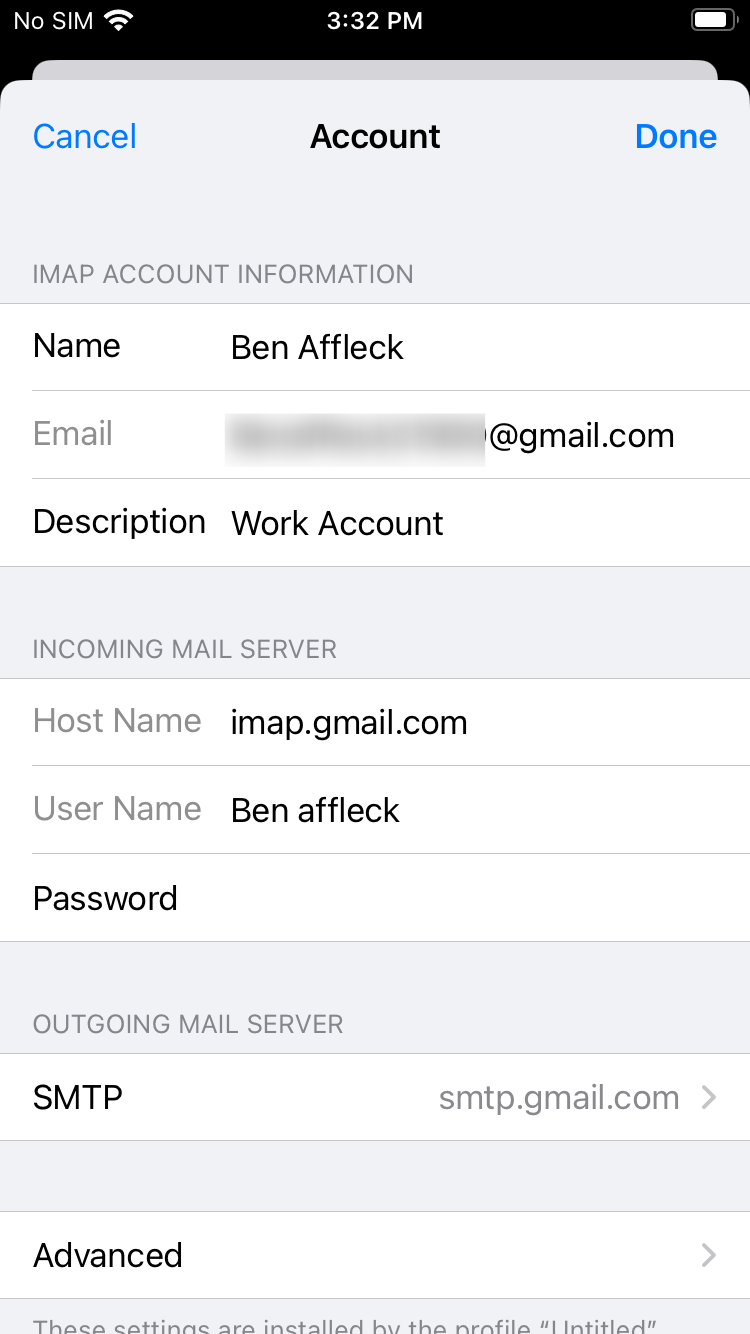](https://cdn.hexnode.com/mobile-device-management/help/wp-content/uploads/2024/05/Configuration-profile-for-iOS-email-settings-adds-the-account-in-the-Mail-settings.png)
Notes:- To create and customize configuration profiles, you can use tools like Apple Configurator, Profile Manager or manually create them using text editors.
- Use non-encrypted .mobileconfig, .xml, or plist files to deploy profiles across macOS devices.
- Ensure that you do not associate conflicting configurations with the devices.
- Use wildcards to fetch key values from the portal.
- It is recommended to manually validate the configuration profile execution on a system before executing the action in bulk.
- Hexnode will not be responsible for any damage/loss to the system on the behavior of the configuration profile.
### See also
[Configure Email on iOS devices from Hexnode UEM](https://www.hexnode.com/mobile-device-management/help/email-configuration-for-ios/)