# Configure Alert Profiles to get notified about events
Creating custom alert profiles within the Hexnode console empowers both technicians and enrolled users to receive timely notifications about specific events. These events are closely linked to device management activities and represent named actions occurring either at the endpoints—often initiated by users—or within the portal, typically executed by administrators. Examples include actions such as device enrolled, device compliant, battery low, new policy created, or policy deleted.
Alert profiles serve as a proactive communication tool. Administrators who want to stay informed about significant operations within Hexnode, or users who need to track device-specific changes, can rely on automated alerts triggered by these profiles.
Alerts can be configured to deliver email alerts whenever predefined events occur—whether on the device or within the portal—ensuring that relevant stakeholders are always in the loop.
Steps to configuring alert profiles
-----------------------------------
The following steps explain how to configure alert profiles,
1. Log in to the Hexnode UEM portal.
2. Navigate to **Admin > Alert Profile**.
3. Click on **New Alert Profile** to create a new profile or click on an existing profile and then click **Edit** to make changes to it.
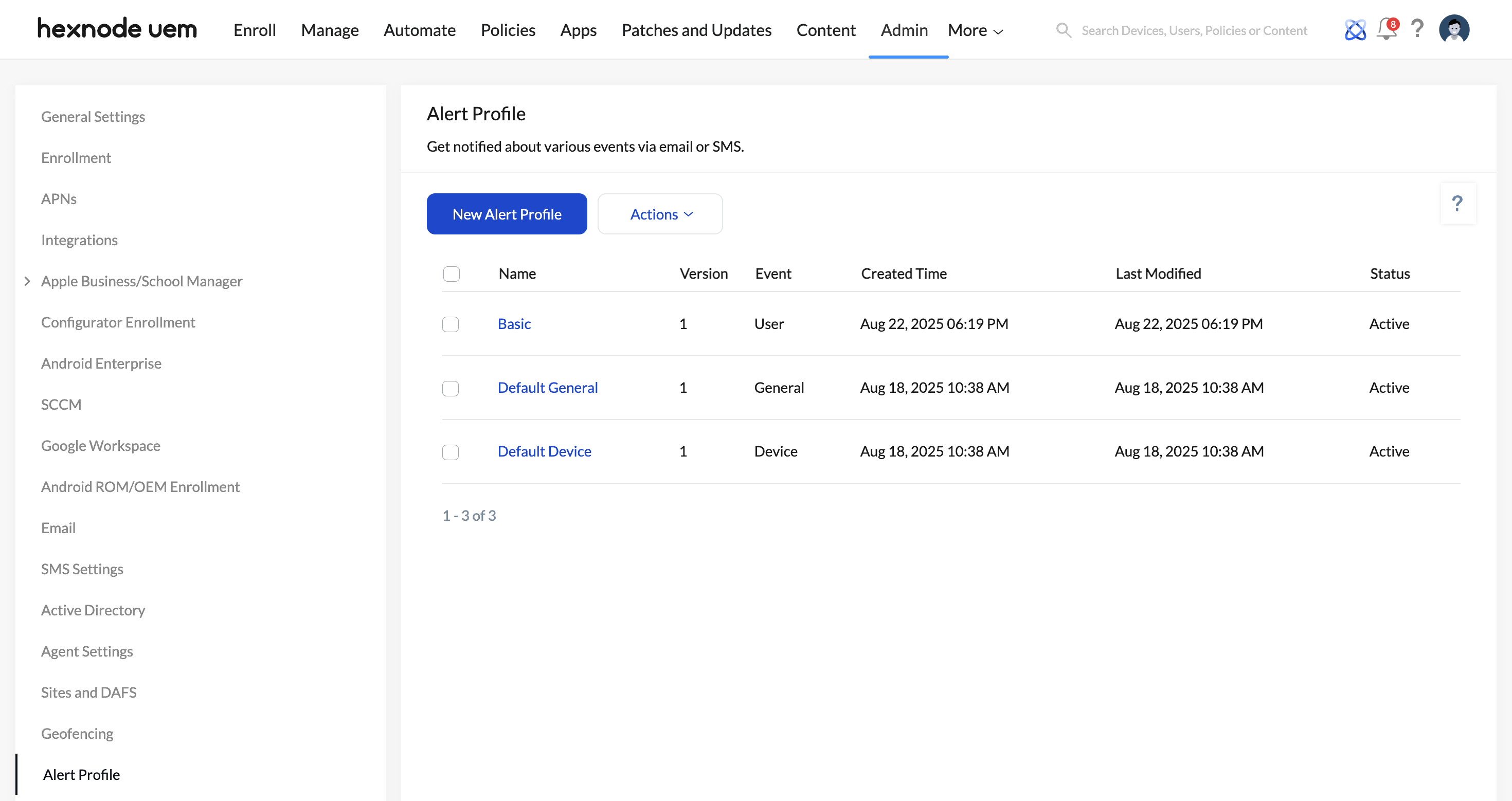
4. To configure an alert profile, follow these five major steps.
### **Step 1 – Events**
1. Select the event source for which the notifications should be received:
- **Device**: Select ***Device*** as the event source to receive notifications about events that occur with respect to individual devices or device groups.
- **User**: Select ***User*** as the event source to receive notifications about events that occur with respect to individual users or user groups.
- **Domain**: Select ***Domain*** as the event source to receive notifications about events that occur with respect to domains.
- **Policy**: Select ***Policy*** as the event source to receive notifications about events that occur with respect to policies, such as policy creation or deletion.
- **General**: Select ***General*** as the event source to receive notifications about the occurrence of general events in the portal, such as for the configuration of MDM or email settings.
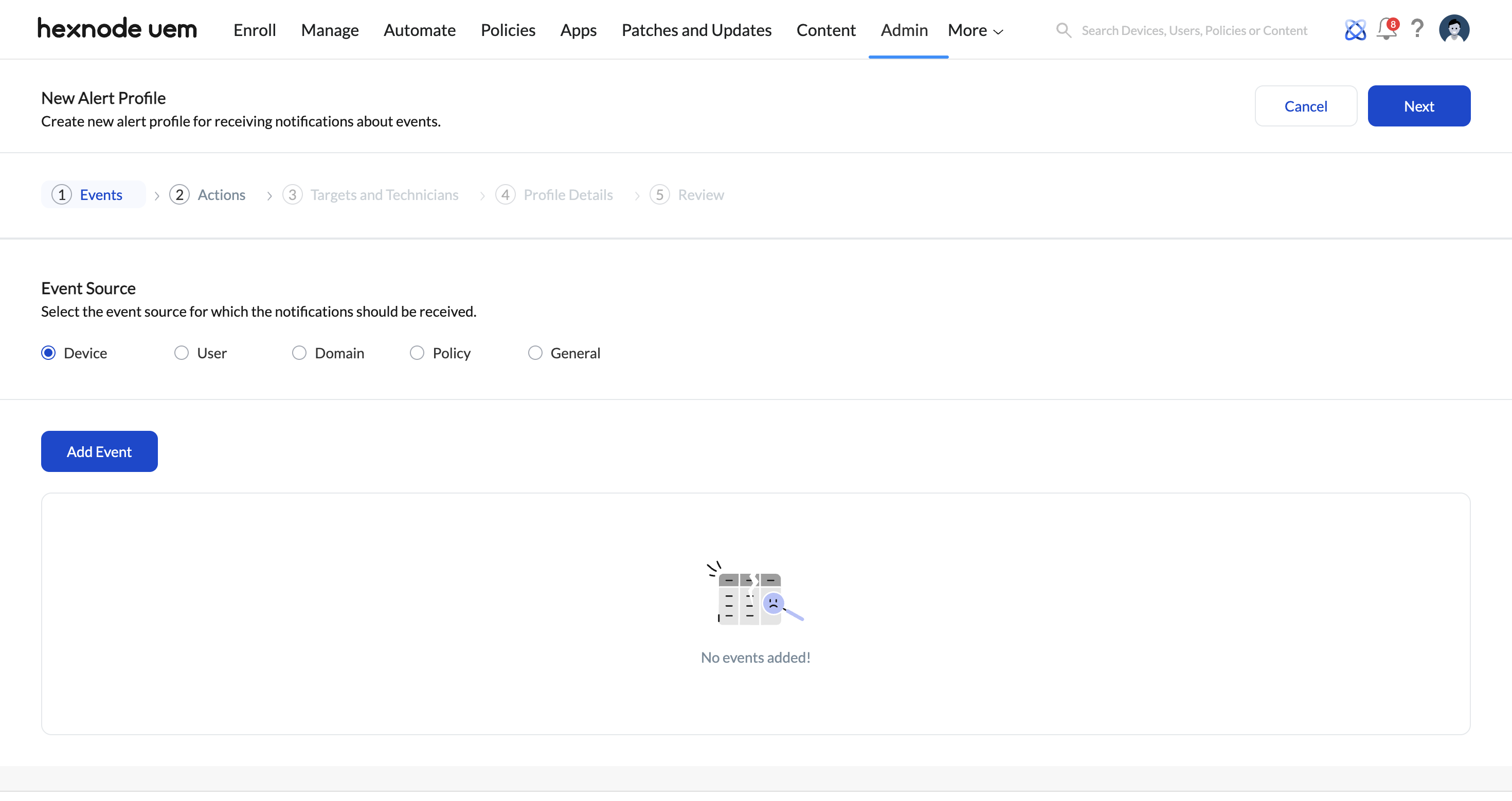
2. Click on **Add Event** to select the events individually from a list of events corresponding to each event source.
The following are the alerts available for each event source-
- #### For **Device**,
##### **Device-Specific notifications**
NotificationsDescriptionDevice disenrolledA device is disenrolled from Hexnode UEM.MDM agent removed from deviceHexnode MDM is removed from a device.Device re-enrolledDisenrolled device is re-enrolled with Hexnode UEM.Device disenrolled by systemDevice is disenrolled by the system.Device out of complianceThis notification is received when a device fails to meet any one of the compliance requirements and is marked as non-compliant.Device compliantDevice meets all the compliance requirements specified in compliance policies.Device enrolledNew device is enrolled with Hexnode UEM.Disenroll device action initiated on device‘Disenroll device’ action is initiated on device.Remote wipe action initiated on device‘Wipe device’ action is initiated on a device.Marked as disenrolledDevice is marked as disenrolled.Clear activation lock initiated‘Clear Activation Lock’ action is initiated on a device.Disable Lost Mode action initiated‘Disable Lost Mode’ action is initiated on a device.Lost Mode Enabled‘Enable Lost Mode’ action is initiated on a device.Location Scanning FailedWhen Hexnode UEM fails to fetch the device location.Mock Location DetectedMock location on a device is detected when you try to spoof your Android GPS location.Exited from kioskDevice exits kiosk mode.Battery LowNotifies the admin when the battery level on a device becomes low.UEM app uninstalled from deviceThe UEM app is uninstalled from the device.
Note:
Supported for:
- iOS
- macOS
- Windows
SIM card addedThe SIM card is added to the device.SIM card removedThe SIM card is removed from the device.SIM card changedThe SIM card is replaced with another one.
Note:
The SIM card added, SIM card removed, and SIM card changed notifications are sent to administrators only for iOS devices and Android devices enrolled in Android Enterprise as [Device Owner](https://www.hexnode.com/mobile-device-management/help/how-to-enroll-a-device-in-android-in-the-enterprise-as-device-owner-using-hexnode-mdm/) or [Profile Owner](https://www.hexnode.com/mobile-device-management/help/how-to-enroll-a-device-in-android-in-the-enterprise-as-profile-owner-using-hexnode-mdm/).
##### **Device Group-Specific notifications**
NotificationsDescriptionDevice group deletedAny device group is deleted.Device group createdA new device group is created.Disenroll device action initiated on device group‘Disenroll device’ action is initiated on a device group.Remote wipe action initiated on device group‘Wipe device’ action is initiated on device group.
- #### For **User**,
##### **User-Specific notifications**
NotificationsDescriptionRemote wipe action initiated on user‘Wipe device’ action is initiated on a user. All devices enrolled under this user will be wiped off their contents.Disenroll Device action initiated on user‘Disenroll Device’ action is initiated on user.User createdA new user is created.User deletedAny user is deleted.##### **User Group-Specific Notifications,**
NotificationsDescriptionNew user group createdA new user group is created.User group deletedAny user group is deleted.Disenroll device action initiated on user group‘Disenroll device’ action is initiated on user group.Remote wipe action initiated on user group‘Wipe device’ action is initiated on a user group.
- #### For **Domain**,
NotificationsDescriptionDomain details updatedWhen AD Domain details are updated.Domain configuredA new Active Directory Domain is configured.Domain deletedAn Active Directory Domain is deleted.Domain synchronizationThis notification is received when an Active Directory Domain synchronization occurs. Domain Synchronization can be done either manually (***Admin > Active Directory > Settings > Sync Now***) or automatically (daily sync).Disenroll device action initiated on domain‘Disenroll device’ action is initiated on domain.Remote wipe action initiated on domain‘Wipe device’ action is initiated on domain.Disenroll device action initiated on organizational unit‘Disenroll device’ action is initiated on organizational unit.Remote wipe action initiated on organizational unit‘Wipe device’ action is initiated on organizational unit.
- #### For **Policy**,
NotificationsDescriptionPolicy ArchivedA policy is archived.New policy createdA new policy is created.Policy details updatedChanges made to policy are updated to devices.Policy deletedPolicy is deleted.
- #### For **General**,
NotificationsDescriptionEmail settings configuredEmail settings are configured.MDM settings configuredMDM settings such as device inactivity settings, device scan settings, Knox settings, kiosk global settings etc. are configured.Enrollment email delivery failedA notification is received when delivery of enrollment request email sent to an email address fails.API key generatedAn API key is generated.Geo Maps CreatedA new geo map is created.Android Enterprise configuredAndroid Enterprise is configured in Hexnode UEM.Android Enterprise disenrolledEnterprise is disenrolled from Android Enterprise.UEM profile password updatedUEM profile password is updated.DEP sync failedThis notification is received when the action to sync DEP accounts fails.
After selecting the events, click **Next** to go to the next section.
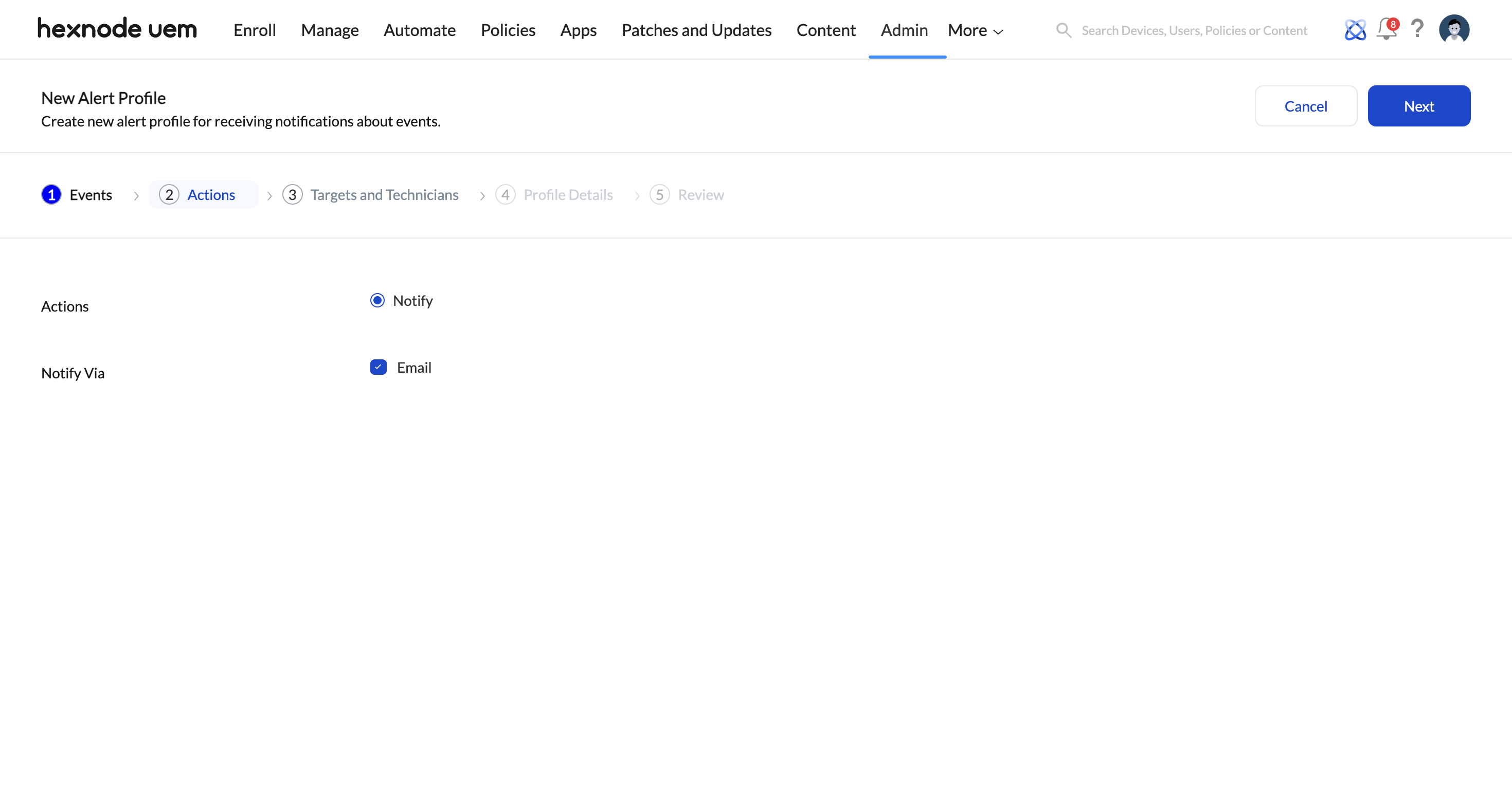
### **Step 2 – Actions**
Select **Email** under the **Notify Via** option to notify the technicians via their email. Then, click **Next**.
### **Step 3 – Targets and Technicians**
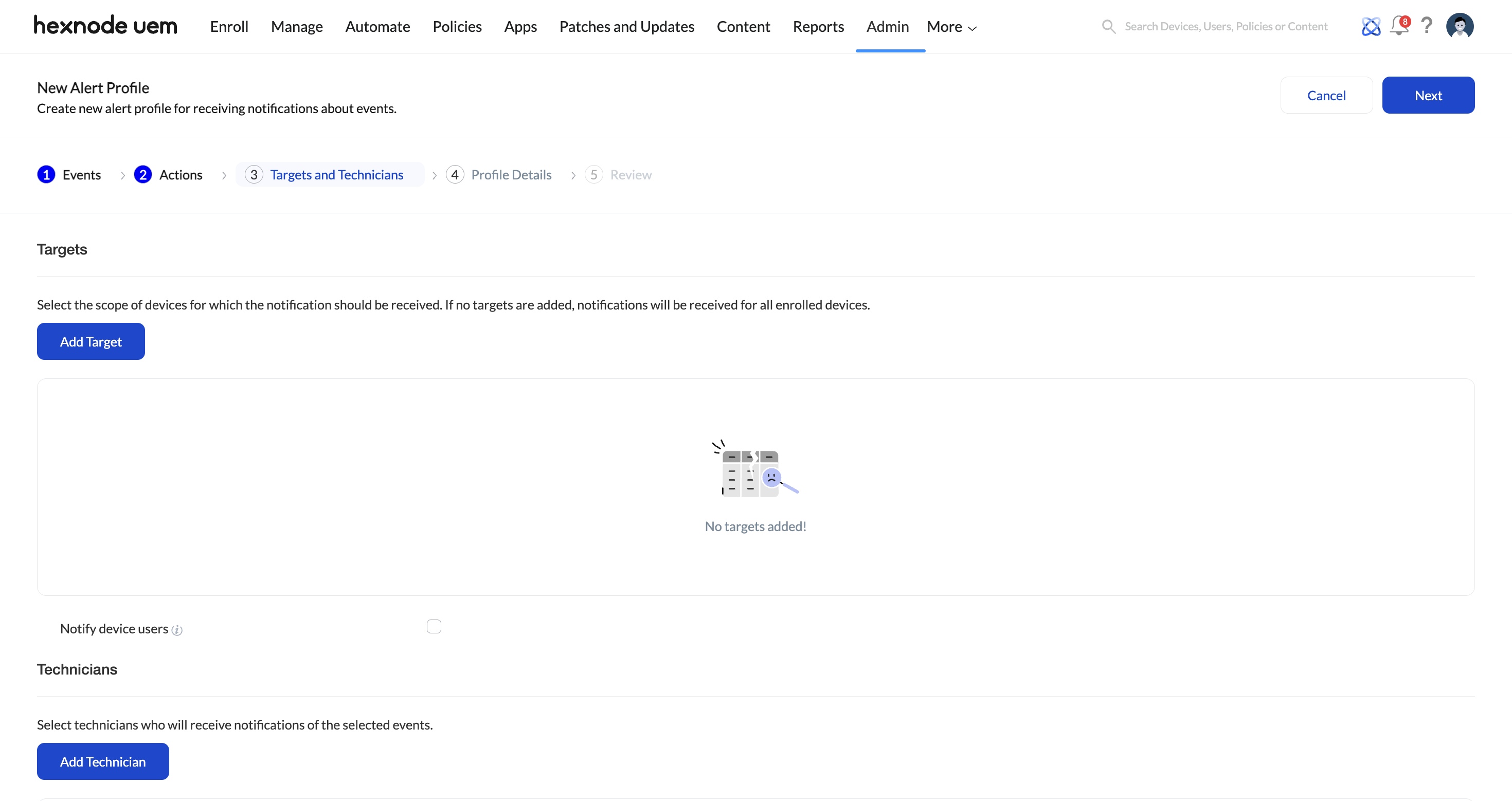
- #### Targets
Under Targets, select the scope of devices to apply the alert profile.
- Click on **Add Target** and choose the target scope (*Device/Device Group/User/User Group*).
- Then, select the targets and click on **Add**.
- Enable the option **Notify device users** to notify assigned users about the events specific to their devices. Under the option **Events to be notified**, select the events for which the assigned users should be notified about.
Note:
Under **Events to be notified**, only the events that are device-specific will be available to select.
- #### Technicians
Under Technicians, select the technicians who will receive alerts for the events selected.
- Click on **Add Technicians** and select the technicians.
- Select the option **Select all technicians** to select all the technicians. Select the option **Select all Admins** to select only the admins.
- Then, click on **Add**.
- #### Additional Technicians
To add additional recipients who aren’t technicians, use the **“Additional Recipients”** section to ensure they receive event notifications. Click on **Add Recipients**, and enter the recipient details such as the *Recipient name, Recipient email*, and *Phone number*.
Once you have configured the ***Targets and Technicians*** section, click on **Next**.
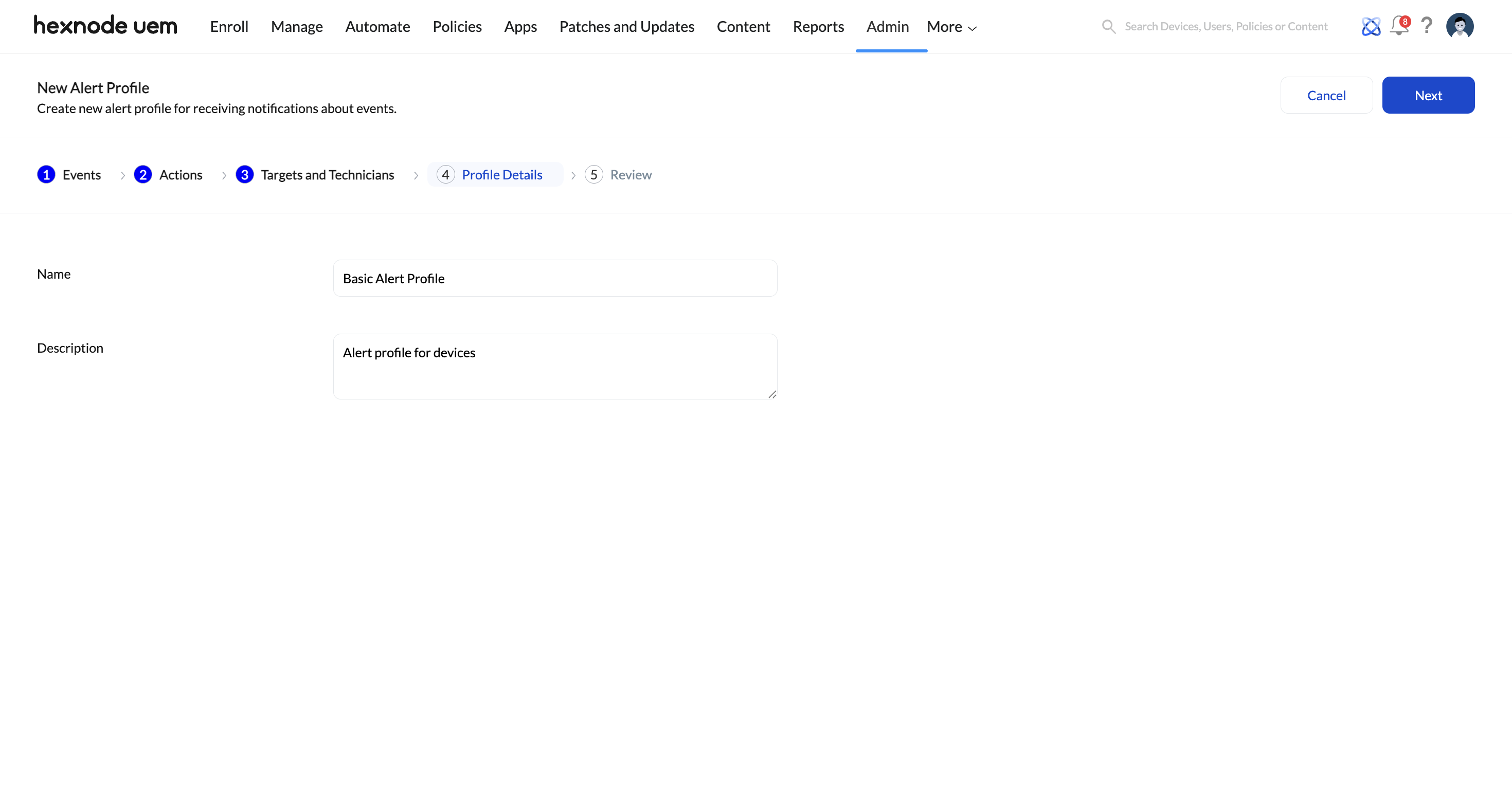
### **Step 4 – Profile Details**
Enter the basic details for the alert profile, such as its **Name** and **Description**. Then, click on **Next**.
### **Step 5 – Review**
The next page leads to the **Review** section, where the configured settings for the alert profile can be viewed. If any adjustments are needed, click the **Edit** option to access the corresponding section and make changes as necessary.
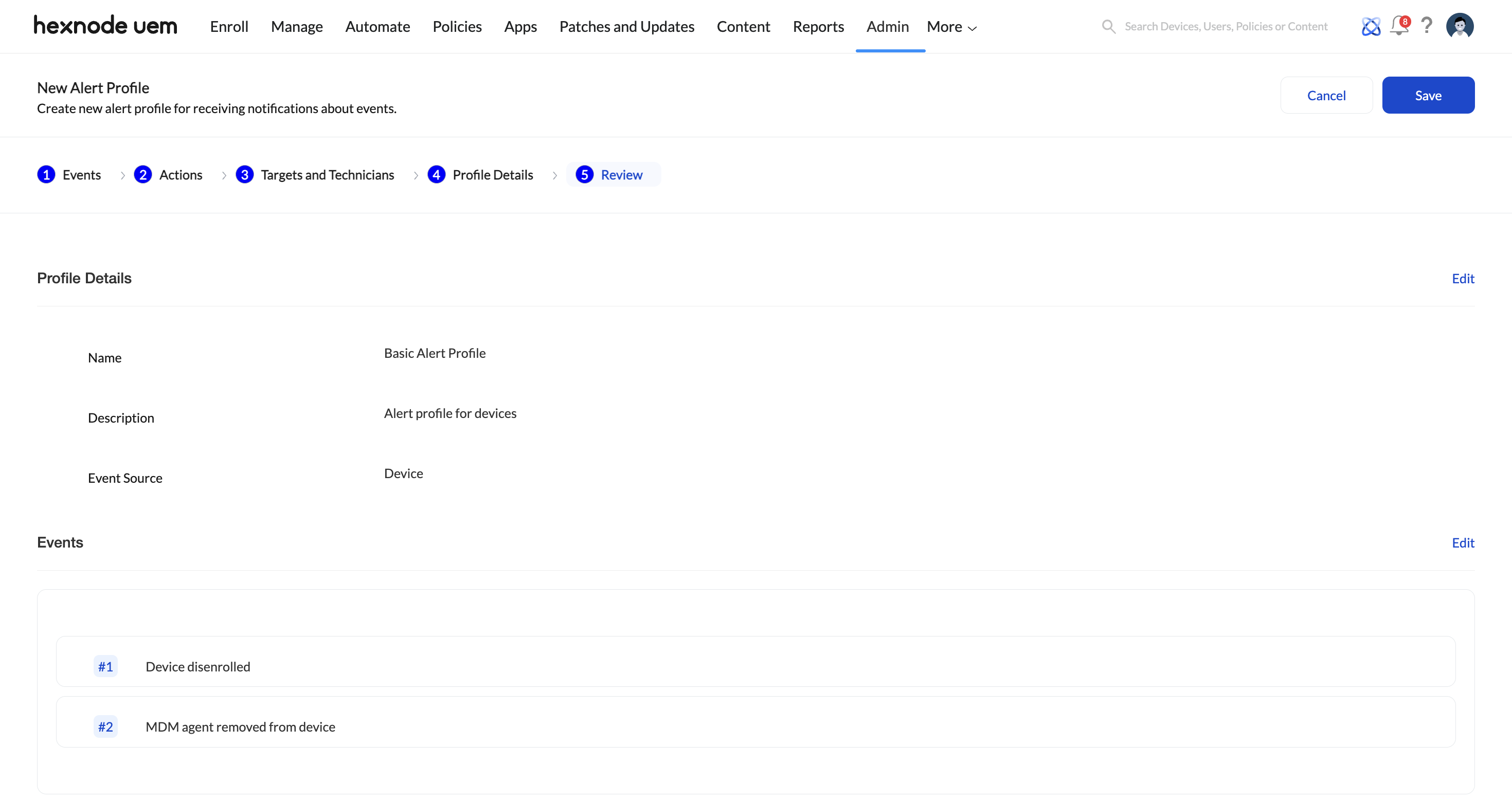
5. Once you have reviewed the alert profile, click **Save**.
Alert Profile Tab Overview
--------------------------
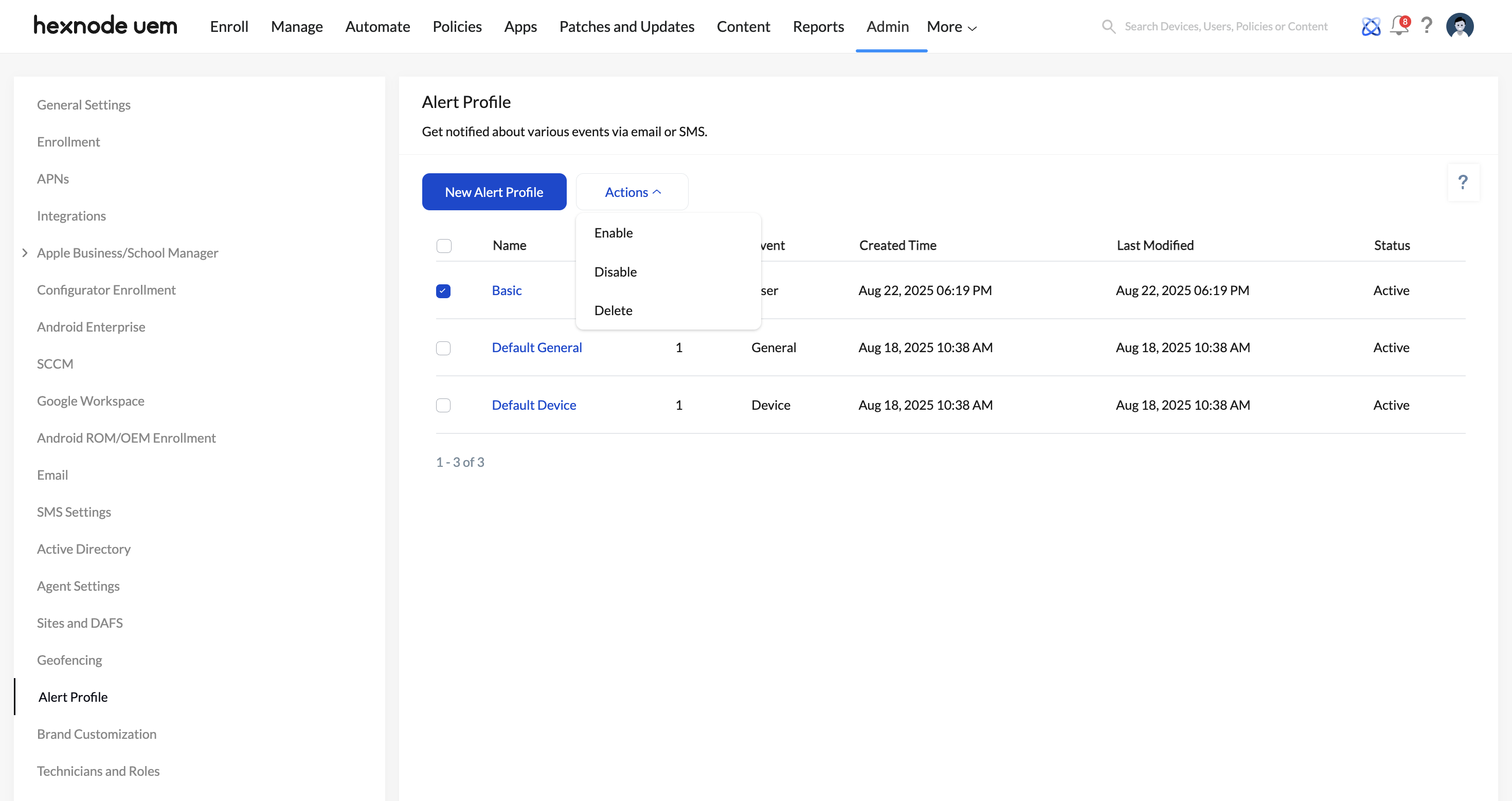
In the Alert Profile tab, you can view all the configured alert profiles and their related information, such as their *Name, Version, Event source (Device/User/Domain/Policy/General), Created Time, Last Modified,* and *Status*.
You can also find an ***Actions** button with the option to enable, disable, or delete any configured alert profiles.
*